YouTube notifications
How to turn off YouTube notifications on Android
To turn off YouTube notifications on Android, open the YouTube app, tap your profile picture → Settings → Notifications, and turn off the types you do not want, like Subscriptions and Recommended videos. To mute one channel, tap the bell next to Subscribed on its page and choose None. To stop everything YouTube sends, open your phone’s Settings → Notifications → App notifications, tap YouTube, and turn its notifications off. Menu names vary a little by YouTube version and phone.

What does YouTube send notifications about?
Google’s YouTube notification help says YouTube sends notifications for channels you subscribe to, and may also send notifications based on your interests. In practice that covers a few different things:
- Subscriptions. New uploads, Shorts, and live streams from channels you follow. When you subscribe, YouTube sets the channel to Personalized notifications by default.
- Recommended videos. Videos from channels you do not subscribe to, picked from your watch history.
Each of these is a small invitation to open YouTube “just to check”, and recommended videos in particular are built to pull you back in. There are several places to turn things off, from one channel up to the whole app.
How do you turn off notification types in the YouTube app?
This is where most people should start. Per Google’s YouTube help:
- Open the YouTube app and make sure you are signed in to the right account.
- Tap your profile picture at the bottom of the screen.
- Tap Settings, the gear at the top, then Notifications.
- Turn off the types you do not want. Turning off Recommended videos stops suggestions from channels you do not follow. Turning off Subscriptions stops alerts from the channels you do.
These settings belong to your YouTube account, so if you use more than one account on the phone, repeat the steps for each one.

How do you turn off notifications from one YouTube channel?
If you want to hear from a few channels and not the rest, set the bell for each channel:
- Open the channel page, or a video from that channel.
- Tap the bell next to Subscribed.
- Choose None. You stay subscribed, and its videos still show in your Subscriptions feed, but it stops notifying you.
To go through every channel at once, open the Home tab, tap Subs at the top, tap All at the top right, and set the bell next to each channel. In the bell menu, All means long-form uploads and live streams, Personalized means YouTube picks some, and None means nothing.
How do you get fewer, quieter YouTube notifications?
If you do not want to lose them entirely, YouTube has two softer options under profile picture → Settings → Notifications:
- Scheduled digest. Per Google’s help, this combines all the push notifications you would get in a day into one daily notification, at a time you choose. It is off by default. Live streams may have ended by the time the digest arrives.
- Disable sounds & vibrations. Per Google’s help, this sends notifications silently during a set window each day, 10 PM to 8 AM by default. You still get them, just without the buzz.
The digest is a good middle ground: you still find out what your favourite channels posted, without a dozen small reasons to pick the phone up during the day.
How do you turn off YouTube notifications in Android settings?
If you want YouTube to send nothing at all, use Android’s own app notification settings, per Google’s Android notification help and YouTube help:
- Open Settings and tap Notifications, then App notifications (on some phones, Apps).
- Select All apps if needed, and find YouTube.
- Turn off its notifications, or tap in and turn off only the categories you do not want.
This is the bluntest option, and it is account-proof: whatever you change inside the app, Android will not show YouTube’s notifications. You can still open the bell inside YouTube to see what you missed. For the general version of this for any app, see how to turn off notifications for specific apps.
Which option should you pick?
| Option | What it stops | Use it for |
|---|---|---|
| Turn off Recommended videos | Suggestions from channels you do not follow. | Most people. Start here. |
| Set a channel’s bell to None | That channel only. | One noisy channel you still want to follow. |
| Scheduled digest | A day of alerts, bundled into one. | Keeping up without the drip. |
| Disable sounds & vibrations | The buzz, not the notifications. | Nights and work hours. |
| Android app settings | Everything YouTube sends. | When you want YouTube silent. |
For most people, turning off Recommended videos and setting the bell to None on a few chatty channels is enough. If you find yourself opening YouTube from a notification and surfacing 40 minutes later, go all the way and turn it off in Android settings. Pair it with turning off autoplay and limiting YouTube Shorts, and for quiet hours across every app, use Do Not Disturb.

What if YouTube notifications keep coming back?
I turned them off, but I still get some
- Check the account. Tap your profile picture and see which account is signed in at the top. Settings are per account, so a second account can still notify you.
- Check which app sent it. Touch and hold the notification and see which app it names. It might be YouTube Music, YouTube Kids, YouTube Studio, or a YouTube site in Chrome. Each has its own settings.
I want my subscriptions, but nothing else
- Leave Subscriptions on and turn off Recommended videos. Then set the bell to None on channels you do not need alerts for.
I cannot find the setting
- Update YouTube from Google Play, then look again. Google notes that notification settings may differ slightly by device.
Where ReClaim fits
ReClaim is the Android launcher we build. It does not read or change your notifications, and it does not touch YouTube’s settings, so everything above keeps working as described. What ReClaim changes is what you see when you unlock: a home screen with a clock and the few apps you choose, and a plain alphabetical list of names for everything else. On top of that:
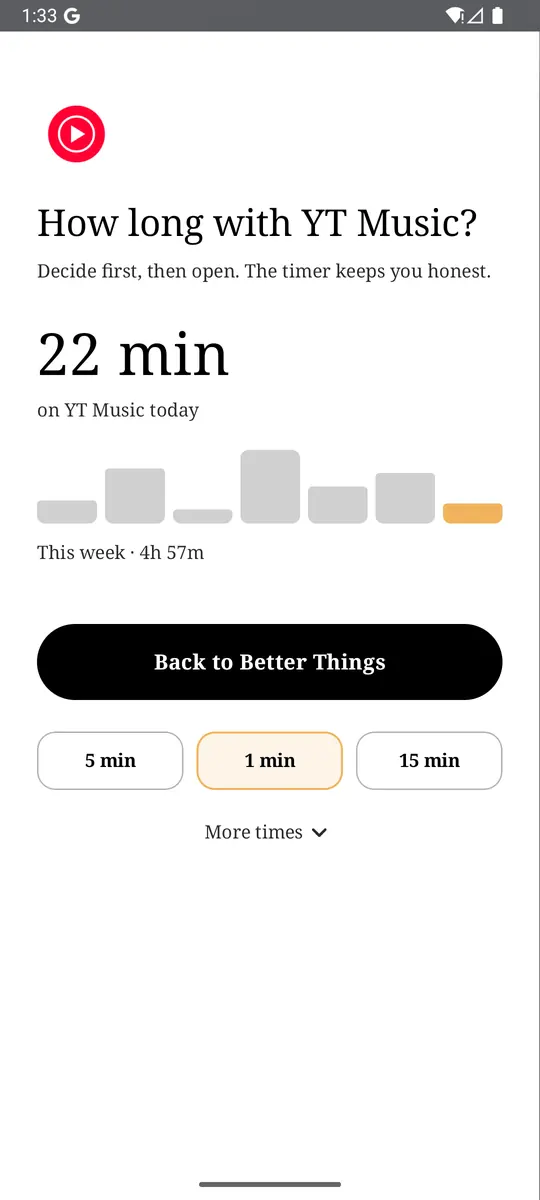
- App reminders. Before YouTube opens, ReClaim asks how long you intend to use it, then nudges you when that time is up.
- Daily and weekly limits. Give YouTube a budget. When it is up, ReClaim can close it.
- Blocking and scheduled blocking. Block an app for a set time, or set recurring windows, like bedtime, when selected apps are not available.
- Hidden apps with friction. Hide an app with four levels of hiding, and put one of 10+ unlock challenges in front of it.
If you want to try it, see how to change the default launcher on Android; switching back is the same setting.
Open YouTube → profile picture → Settings → Notifications and turn off Recommended videos. If you also want a pause before YouTube opens, try ReClaim. It is free, works on Android 8.0 and newer, and you can switch back to your old home app any time from Settings → Apps → Default apps. Get it free on Google Play.
Questions
How do I turn off YouTube notifications on Android?
Open the YouTube app, tap your profile picture, then Settings and Notifications, and turn off the notification types you do not want, like Subscriptions and Recommended videos. To stop everything YouTube sends, open your phone’s Settings, tap Notifications, then App notifications, find YouTube, and turn its notifications off.
How do I stop notifications from one YouTube channel?
Open the channel page or one of its videos, tap the bell next to Subscribed, and choose None. You stay subscribed and still see its videos in your Subscriptions feed, but you no longer get notifications from it.
Why does YouTube notify me about channels I don’t subscribe to?
Those are recommended video notifications, based on what YouTube thinks you might like. Turn them off in the YouTube app under your profile picture, Settings, Notifications, Recommended videos.
Can I get YouTube notifications once a day instead?
Yes. Turn on Scheduled digest in the YouTube app under Settings, Notifications, and pick a time. YouTube combines the day’s push notifications into one. It is off by default, and live streams may be over by the time the digest arrives.
Can I keep YouTube notifications but make them silent?
Yes. In the YouTube app, go to Settings, Notifications, and turn on Disable sounds & vibrations, then set a start and end time. You still get the notifications, just quietly during that window.