Notifications
How to turn on Do Not Disturb on Android
To turn on Do Not Disturb on Android, swipe down from the top of the screen to open Quick Settings, then tap Do Not Disturb. On some newer Pixel phones, tap Modes first, then Do Not Disturb. You can also open Settings, Modes, Do Not Disturb, then Turn on now. Set a duration so it ends on its own, add a schedule for recurring quiet hours, and use Notification filters so starred contacts, alarms, or a short app list can still break through. On Samsung Galaxy phones, the same Quick Settings tile works; touch and hold it to add schedules and exceptions.

What does Do Not Disturb do on Android?
Do Not Disturb (DND) is Android’s switch for limiting interruptions. Google’s Modes & Do Not Disturb help describes it as a way to silence the device and manage when and how you want to be notified. Once you set it up, you turn it on from Quick Settings without reopening the full Settings app.
On recent Android versions, DND sits inside a broader Modes menu alongside Bedtime and Driving. Some of those Mode steps, Google notes, only work on Android 14 and up. Older phones still have Do Not Disturb under Sound & vibration or Notifications; the idea is the same even when the menu label moves.
In practice, a useful DND setup usually includes:
- A one-tap way to turn it on from Quick Settings, so you are not hunting menus mid-meeting.
- A duration so a two-hour focus block does not accidentally stay silent until dinner.
- Filters for people, apps, and alarms, so emergencies and wake-up alarms still work.
- A schedule only where the quiet hours are predictable (deep work, classes, worship, recurring meetings).
DND does not pause apps, dim icons, or stop you from opening Instagram yourself. If you are not sure alerts are the main problem, check screen time on Android and compare the Notifications received view with Times opened. It changes who can pull you back. If the failure mode is “I unlock and open the app,” you need a different tool: Focus mode, an app timer, or a harder block. The comparison table later in this guide sorts those jobs.

How do you turn on Do Not Disturb from Quick Settings?
Google’s Android Help gives the fast path first:
- Swipe down from the top of the screen to open Quick Settings. On many phones you swipe down once for notifications and again for the full tile grid.
- Tap Do Not Disturb.
- Tap again to turn it off when you are done, or wait for the duration you set.
On some newer Pixel phones, Google and Android Central describe a Modes Quick Settings tile that groups Do Not Disturb, Bedtime, and Driving. If you see Modes instead of a lone moon or ban icon:
- Tap Modes.
- Tap Do Not Disturb in the pop-out list.
- Long-press a mode when you want to edit filters or schedules without opening Settings the long way.
If the tile is missing, open the Quick Settings edit pencil (or similar edit control), find Do Not Disturb or Modes, and drag it onto an active page. Exact edit UI varies by manufacturer; Settings search for “Do Not Disturb” still works when the tile is gone.
How do you turn on Do Not Disturb from Settings?
Google’s current Modes path:
- Open the Settings app.
- Tap Modes.
- Tap Do Not Disturb, then Turn on now.
From the same screen you can edit Notification filters (who and what gets through) and related display options for filtered notifications. Google’s tip: critical notifications still show; you cannot block system security alerts through these filters.
If you do not see Modes yet, try:
- Settings → Sound & vibration → Do Not Disturb
- Settings → Notifications → Do Not Disturb
- Settings search for “Do Not Disturb”
Menu labels move with Android version and manufacturer skin. Prefer the search result over memorizing a path that changed after a system update.

How do you turn on Do Not Disturb on a Samsung Galaxy?
Samsung documents a clear Quick Settings path in its Galaxy Do not disturb support article. Screens can vary by carrier and One UI version.
- Swipe down from the top with two fingers to open the Quick settings panel.
- Swipe to the Do not disturb icon and tap it to turn it on or off.
- Or open Settings, search for Do not disturb, and tap the switch.
To configure exceptions and schedules, Samsung says:
- Touch and hold the Do not disturb icon in Quick settings to open its settings.
- Tap Add schedule (on some devices: Turn on as scheduled, then Add) to create recurring quiet hours. Enter a title and preferences, then Save, and turn the schedule’s switch on.
- Under Allowed during Do not disturb, choose Calls and messages, App notifications, and Alarms and sounds.
- Use Hide notifications if you also want to hide banners, badges, or panel entries for filtered alerts. Samsung notes that critical notifications about phone activity or status are not hidden.
| Phone | Fast toggle | Where to edit |
|---|---|---|
| Pixel / stock-leaning Android | Quick Settings → Do Not Disturb (or Modes → Do Not Disturb) | Settings → Modes → Do Not Disturb |
| Samsung Galaxy | Quick settings → Do not disturb | Touch and hold the tile, or Settings search → Do not disturb |
| Other brands | Search Quick Settings tiles for Do Not Disturb | Settings search for “Do Not Disturb” or “Modes” |
How long should Do Not Disturb stay on?
A silent phone that never turns itself off becomes a liability. Google documents a duration control for the Quick Settings toggle:
- Open Settings → Modes → Do Not Disturb.
- Tap Duration for Quick Settings.
- Choose: Until you turn it off; a fixed length such as For 2 hours or For 15 minutes; or Ask every time.
- Tap OK.
Practical defaults:
- Ask every time if you use DND for meetings of different lengths.
- For 1–2 hours if most focus blocks are similar.
- Until you turn it off only when you will notice the status icon and remember to clear it.
Duration is for manual toggles. Recurring quiet hours belong in a schedule or, for sleep, in Bedtime mode.

Who and what can interrupt Do Not Disturb?
Silence without exceptions is how people disable DND forever after missing one important call. Google’s Modes help lists Notification filters under each mode:
- People: Block or allow calls, messages, or conversations. Turn on Allow repeat callers to let a second call from the same person within 15 minutes through.
- Apps: Choose which apps can still send notifications.
- Alarms & other interruptions: Block or allow alarms, media, touch sounds, reminders, or calendar events.
Google also documents display options for filtered notifications (how hidden alerts behave on screen). Exact labels vary by phone; open the mode, then look for Notification filters or More settings → Display settings.
Samsung’s Allowed during Do not disturb section mirrors this idea: Calls and messages, App notifications, and Alarms and sounds, plus Hide notifications controls for banners and badges.
A simple exception policy that survives real life
- Allow alarms. Missed wake-ups destroy trust in the feature.
- Allow starred contacts or a short favorites list, plus Allow repeat callers if you want a double-call emergency path.
- Allow only the apps that can be urgent (for example a work chat or a family locator), not every app that feels important.
- Leave everything else blocked for that mode. Promotional noise is why you opened DND.
If one app keeps breaking through after you blocked it, check that app’s own notification categories and, on older Android, whether Override Do Not Disturb is enabled for it. Google’s older help documents an Override Do Not Disturb toggle under the app’s notification settings.
How do you schedule Do Not Disturb automatically?
Manual toggles fail when the quiet hours are the same every weekday. Google documents automatic rules:
- Open Settings → Sound & vibration → Do Not Disturb → Turn on automatically. (If you see “Do Not Disturb preferences,” you are on an older Android path.)
- Tap a rule, or tap Add rule → Time to make your own.
- Edit the name, days, times, and alarm override.
- Confirm the rule’s switch is on at the top of the screen.
Google’s tip for deleting a rule: open it and tap Delete.
On Samsung, use the schedule flow from the Do not disturb settings (touch and hold the Quick Settings tile). You can create multiple schedules—for example weekday deep-work mornings and a separate evening block.
Choose schedules carefully:
| Pattern | Better tool | Why |
|---|---|---|
| Same work or study hours most weekdays | DND schedule, or Focus mode if apps must pause | Predictable quiet without a sleep routine |
| Night silence plus calmer screen | Bedtime mode | Bedtime packages DND with grayscale and other wind-down options |
| One meeting this afternoon | Quick Settings + duration | No need for a permanent rule |
| Driving | Driving mode under Modes (where available) | Google documents a dedicated driving profile separate from generic DND |

How is Do Not Disturb different from Bedtime mode, Focus mode, and mute?
People often turn on DND, still open the distracting app themselves, and conclude the feature “does nothing.” It did exactly what it claims: it stopped alerts. It did not redesign the unlock habit.
| Tool | What it changes | Best for |
|---|---|---|
| Do Not Disturb | Which calls, messages, apps, and sounds can interrupt you | Meetings, deep work, worship, any block where alerts are the problem |
| Bedtime mode | Sleep routine: can enable DND plus calmer screen options | Night hours; see Bedtime mode setup |
| Focus mode | Pauses selected apps for a session or schedule | When the apps themselves must be unavailable; see Focus mode |
| App timer | Daily usage cap that resets at midnight | Apps that are fine in small doses; see app timers |
| Grayscale | Whole screen goes black and white | Reducing pull without pausing apps; see grayscale mode |
| Volume mute / vibrate | Sound only; banners and lock-screen alerts can still appear | Quick silence when you still want visual notifications |
A strong weekday stack for many people: DND (or Focus mode) for deep-work hours, app timers on the one or two apps that drift long, Bedtime mode for sleep, and a quieter home screen so the first unlock is not a wall of icons. If you are still choosing among limits, blocks, and reminders, use the decision guide in app limits vs blocking vs reminders.
What if Do Not Disturb will not stay on, is missing, or lets too much through?
I cannot find the Do Not Disturb tile
- Edit Quick Settings and add Do Not Disturb or Modes.
- Search Settings for “Do Not Disturb.”
- On newer Pixels, look under Modes rather than a standalone tile.
- Update the system if Modes features require Android 14+, as Google notes in the Modes help article.
Notifications still appear
- Open the mode’s Notification filters and confirm People, Apps, and Alarms match what you intended.
- Remember Google’s rule: critical notifications still show.
- Check whether Allow repeat callers or a starred contact list is wider than you thought.
- On older Android, disable Override Do Not Disturb for noisy apps.
- Mute the app’s notification categories in Settings → Notifications if the problem is that app’s policy, not DND itself. Our guide to turning off notifications for specific apps on Android walks through it. Android’s notification help covers per-app and per-category controls.
I miss important calls
- Allow starred contacts and turn on Allow repeat callers.
- Keep alarms allowed.
- Use a short duration for experimental setups until you trust the filters.
DND turns off too early or stays on too long
- Set Duration for Quick Settings to Ask every time or a fixed length.
- Check whether a schedule rule is fighting your manual toggle.
- For sleep, move the night rule into Bedtime mode so screen options and DND share one routine.
I silence alerts and still open the apps
- DND is working; the habit is elsewhere. Pair it with Focus mode, a timer, a minimal home screen, or the friction steps in how to stop opening apps on autopilot.

When is Do Not Disturb not enough by itself?
DND is excellent at stopping pulls from outside. Three gaps show up quickly:
- You can still open any app. Silence does not block the icon.
- Filters that are too wide recreate the noise. If half your apps can override, you rebuilt the notification shade under a new name.
- Night and day are different jobs. A meeting profile is not a sleep routine. Bedtime mode exists so you do not stretch daytime DND into a poor substitute for wind-down.
A practical stack:
- Do Not Disturb with a duration or weekday schedule for deep-work hours.
- Focus mode if selected apps must pause, not merely go quiet.
- App timers on the apps that drift long after hours.
- Bedtime mode for sleep.
- A quieter home screen so unlock is not an invitation.
- One harder limit on the app that still wins after everything else.
That last step is where a launcher built for friction helps. ReClaim is a minimalist Android launcher: a clock and the handful of apps you choose on the home screen, and a plain alphabetical list, black text and no icons, one swipe away. On top of that sit blocks from 5 minutes to a year, daily and weekly limits, reminders that ask how long you intend to stay, schedules, and hidden apps with four levels of friction. There are no ads and no account. The feature overview has the full list, and the requirements page lists which permission each feature needs.
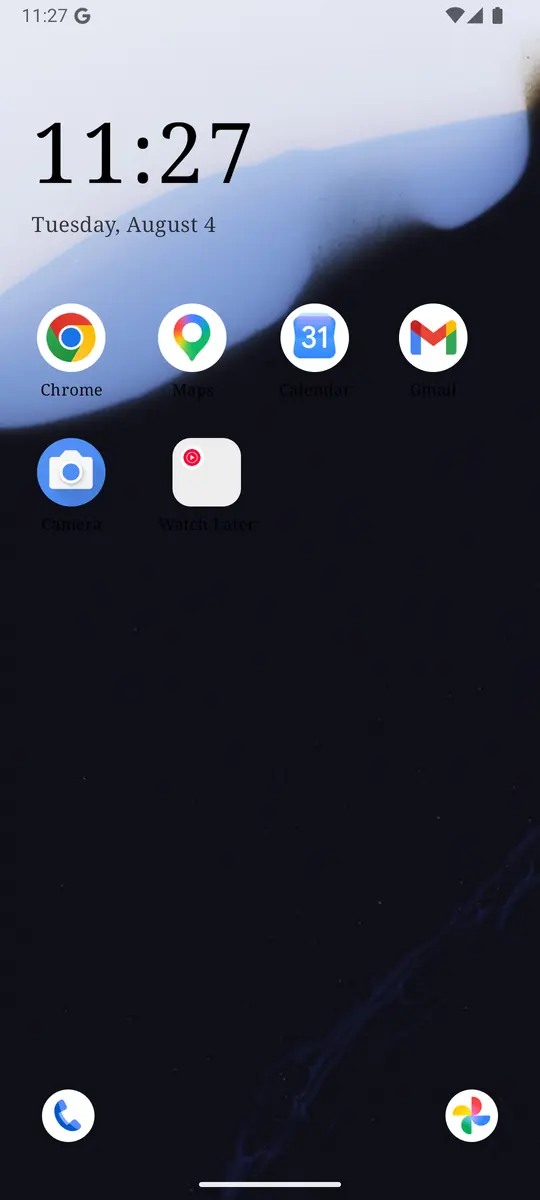
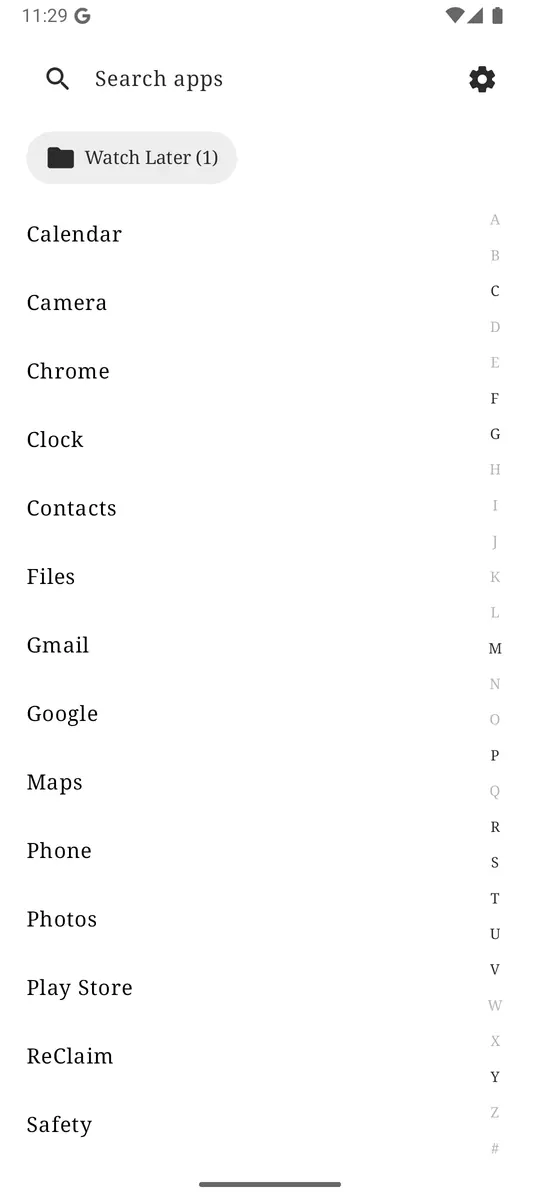
Do Not Disturb for the interruption layer, Focus mode or timers for the apps that still win, and a quiet home screen for the unlock. ReClaim is free, works on Android 8.0 and newer, and you can switch back to your old home app any time from Settings, Apps, Default apps. Get it free on Google Play.
Questions
How do I turn on Do Not Disturb on Android quickly?
Swipe down from the top of the screen to open Quick Settings, then tap Do Not Disturb. On some newer Pixel phones, tap Modes first, then Do Not Disturb. Google’s steps are in the Modes & Do Not Disturb help article.
Will alarms still ring with Do Not Disturb on?
Yes, unless you block alarms in the mode’s filters. Google’s Modes help lists Alarms and other interruptions as something you can allow or block. Critical system notifications still show either way.
How is Do Not Disturb different from Bedtime mode?
Do Not Disturb is the interruption profile. Bedtime mode is a sleep routine that can turn on Do Not Disturb plus calmer screen options such as grayscale. Setup details are in the Bedtime mode guide.
Can I schedule Do Not Disturb on Android?
Yes. Google documents automatic time rules under Sound & vibration → Do Not Disturb → Turn on automatically. Samsung documents adding a schedule from Do not disturb settings opened by touching and holding the Quick Settings tile.
Why do some notifications still get through?
Google notes that critical notifications, such as system security alerts, still show. Starred contacts, allowed apps, alarms, and Allow repeat callers can also break through if those filters are open. On older Android, an app may have Override Do Not Disturb enabled.