YouTube autoplay
How to turn off autoplay on YouTube on Android
To turn off autoplay on YouTube on Android, open any video and tap the Autoplay switch at the top of the player so it is off. You can also tap your profile picture, then Settings → Autoplay, and switch it off there. That stops the next video from starting on its own. For the muted previews that play as you scroll Home and search, go to Settings → General → Playback in feeds and choose Off. The setting can differ by device, so repeat it on your tablet and TV. Steps follow YouTube’s autoplay help; menus can move between app versions.

What does autoplay do on YouTube?
When Autoplay is on, another related video starts by itself after the one you are watching ends. YouTube’s help describes it as a way to make it easier to decide what to watch next. In practice it means you never have to decide at all: the next video is already playing before you have thought about whether you wanted one.
A few details from YouTube’s help that are worth knowing:
- It runs for a long time. On a mobile network, Autoplay stops after you have been inactive for 30 minutes. On Wi-Fi it keeps going for up to 4 hours.
- It is set per device. You can have Autoplay on in the app on your phone and off on your computer, so changing one does not change the others.
- Teens start with it off. For users aged 13 to 17, Autoplay is off by default. On a supervised account, a parent may have turned it off and the switch may not be available.
- Small things interrupt it. If you scroll past the player or type something, like a comment or a search, the next video will not start on its own.
How do you turn off autoplay on a video?
The quickest way, from YouTube’s steps for Android:
- Open any video so you are on the watch screen.
- At the top of the video player, tap the Autoplay switch so it shows as off.
That is it. The switch is a setting, not a one-time choice, so it stays off for the next video too.

How do you turn off autoplay in YouTube settings?
If you cannot find the switch on the player, or you want to check it is really off:
- Tap your profile picture (on newer versions, the You tab).
- Tap Settings (the gear at the top right).
- Tap Autoplay.
- Switch Autoplay off.
Want to leave Autoplay on but skip it once? YouTube’s tip: tap Cancel at the end of the video, when the next one comes up.
How do you stop videos playing in your feed?
Even with Autoplay off, videos can start moving as you scroll. That is a different feature: the inline player. Per YouTube’s inline player help, as you scroll your Home feed and search results, videos begin to play on mute with captions. It may be on by default on both Wi-Fi and mobile data. To turn it off:
- Tap your profile picture, then Settings.
- Tap General.
- Tap Playback in feeds.
- Choose Off. The other options are Always on and Wi-Fi only.
This one matters more than it looks. A moving preview is far harder to scroll past than a still thumbnail, and YouTube notes that if you watch a video for a while in the inline player, it may go into your watch history. Off means you only watch what you actually tap. YouTube also says previews are already turned off on some devices and formats to save battery, so you may not see every option.
How do you turn off autoplay while casting to a TV?
Casting has its own queue, and Autoplay can keep filling it. From YouTube’s help:
- Connect your phone to the TV and start a video.
- Tap the control bar at the bottom of the screen to expand the queue and see the Autoplay setting.
- Switch Autoplay off.
If you watch in the YouTube app on the TV itself rather than casting, the setting is in the TV app: Settings → Autoplay.
What does turning off autoplay not stop?
Autoplay off removes the automatic next video. It does not remove the reasons you keep watching:
- Shorts. The Shorts feed is a swipe, not an autoplay queue. The Autoplay switch does not end it. Use the Shorts feed limit in our YouTube Shorts guide.
- Recommendations. The next video is still suggested right under the player. You just have to tap it yourself, which is the point.
- The habit of opening the app. If you open YouTube without deciding to, no player setting will catch that. See stop opening apps on autopilot.

How do you add a stop that sticks?
Turning off autoplay gives every video an end. If you still end up watching for hours, add a limit:
- Take a break reminder. In YouTube: profile picture → Settings → General (or Time management on newer versions) → Remind me to take a break. It pauses the video at the interval you pick.
- Bedtime reminder. Same menu: Remind me when it’s bedtime, with a start and end time. Pair it with Android’s Bedtime mode, which can turn the screen grayscale at the same hour.
- An Android app timer. Settings → Digital Wellbeing & parental controls → find YouTube → set a daily limit. When the time is up, YouTube pauses until midnight, with no Ignore button. See how to set app timers on Android.
YouTube’s own reminders can be dismissed with a tap. Treat them as a speed bump, and use the app timer if you tap past them every night.
Which setting should you change?
| What happens | Change | Where |
|---|---|---|
| One video turns into ten | Autoplay off | Player switch, or Settings → Autoplay |
| Previews pull you in while you browse | Playback in feeds: Off | Settings → General |
| The TV keeps playing after you look away | Autoplay off in the cast queue | Cast control bar on your phone |
| Shorts eat the evening | Shorts feed limit | Settings → Time management |
| All of YouTube takes too long | App timer | Digital Wellbeing |
What if autoplay will not stay off?
Autoplay is back on
- Autoplay can be set differently on each device. Check the phone, tablet, and TV separately.
- Check which Google Account you are signed in to in YouTube. If you switch accounts, check the setting in each one.
There is no Autoplay switch
- On a supervised account, a parent may control Autoplay, so the switch may not be there.
- Update the YouTube app, then look again in Settings → Autoplay. Menus move between versions.
Videos still play while I scroll
- That is the inline player. Set Settings → General → Playback in feeds to Off.
The next video still plays on the TV
- Turn off Autoplay in the cast queue on your phone, or in Settings in the YouTube app on the TV.
Where ReClaim fits
ReClaim is the Android launcher we build. Autoplay off gives each video an end. ReClaim adds a decision before the first one starts, on the home screen, where opening YouTube usually begins.
- App reminders. Before YouTube opens, ReClaim asks how long you intend to use it, then nudges you when that time is up.
- Daily and weekly limits. Give an app a budget. When it is up, ReClaim can close it.
- Scheduled blocking. Recurring windows, like bedtime, when selected apps are not available.
The home screen is a clock and the few apps you choose, then a plain alphabetical list without icon candy, so a video app is something you go looking for rather than something that finds you.
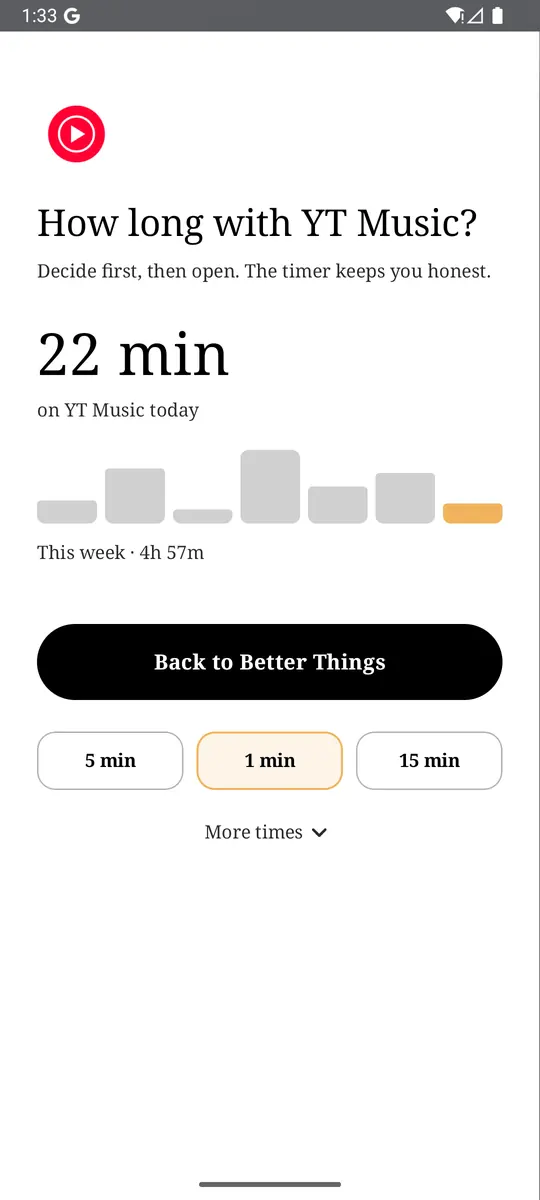
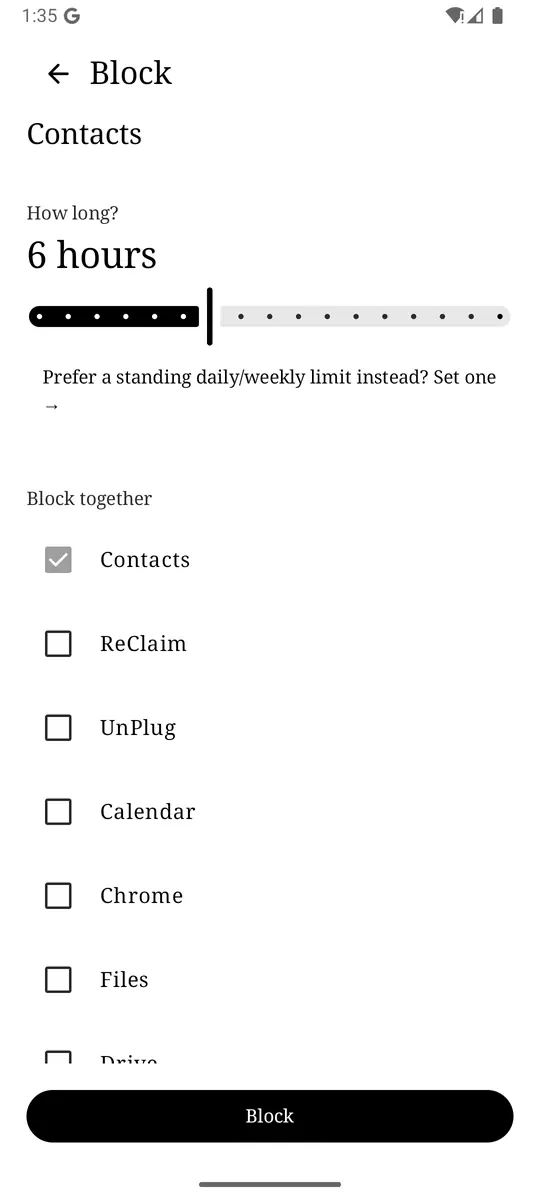
Turn off Autoplay on the player, set Playback in feeds to Off, and check the cast queue next time you watch on the TV. If the hard part is opening YouTube in the first place, put a reminder in front of it. ReClaim is free, works on Android 8.0 and newer, and you can switch back to your old home app any time from Settings → Apps → Default apps. Get it free on Google Play.
Questions
How do I turn off autoplay on YouTube on Android?
Open any video and tap the Autoplay switch at the top of the player so it is off. Or tap your profile picture, then Settings, then Autoplay, and switch it off. To stop the muted previews in Home and search, go to Settings, General, Playback in feeds, and choose Off.
Why does YouTube autoplay keep turning back on?
YouTube lets each device have its own Autoplay setting, so turning it off on your phone does not change your tablet or TV. Check that you changed it on the device you are using, and in the account you are signed in to. If your account is supervised, a parent may control the setting.
How do I stop YouTube videos from playing in my feed?
That is the inline player, not Autoplay. In the YouTube app, tap your profile picture, then Settings, General, Playback in feeds, and choose Off. Wi-Fi only is the middle option if you still want previews at home.
Does YouTube autoplay ever stop by itself?
Yes. YouTube’s help says that on a mobile network, Autoplay stops if you have been inactive for 30 minutes. On Wi-Fi it stops after 4 hours. That is a long time to keep watching without choosing to.
Does turning off autoplay stop YouTube Shorts?
No. Shorts are a swipe feed, so the Autoplay switch does not end them. Use YouTube’s Shorts feed limit under Settings, Time management, or set an Android app timer on YouTube in Digital Wellbeing.