Lock screen notifications
How to hide notifications on the lock screen on Android
To hide notifications on the lock screen on Android, open Settings → Notifications → Notifications on lock screen and turn notifications off, or choose Don’t show any notifications on older versions. On a Samsung Galaxy, open Settings → Notifications → Lock screen notifications and turn off the switch at the top. To keep seeing that something arrived but hide what it says, turn off Show sensitive content on a Pixel, or choose Hide content on Samsung. Menu names vary a little by phone and Android version.

What are your options for lock screen notifications?
Android gives you three levels, and it helps to know which one you want before you open Settings:
- Hide all of them. The lock screen shows the clock and nothing else. You only see notifications after you unlock. This is the quietest option, and the most private.
- Hide the content. You still see that a message or email came in, but not who sent it or what it says until you unlock. Good if your phone sits face up on a desk or a table at dinner.
- Hide the quiet ones. Silent notifications, like promotions and app updates, stay off the lock screen, while alerting ones still show. Good if your lock screen is just cluttered.
None of these turn notifications off. They still arrive in the shade, and calls and alarms still ring. They change what you see, and what anyone glancing at your phone sees, before you unlock it.
How do you hide lock screen notifications on a Pixel?
On a Google Pixel and most phones close to stock Android, per Google’s Android notification help:
- Open Settings and tap Notifications.
- Tap Notifications on lock screen. On some versions it sits under Privacy or Lock screen, or is called On lock screen.
- Pick what to hide. On recent versions, turn notifications on the lock screen off to hide them all, turn off Show silent notifications to hide only the quiet ones, or turn off Show sensitive content to hide what they say. On older versions, choose Don’t show any notifications from the list.
If you choose to hide everything, Google notes that it applies to all apps. To hide only some apps, use the per-app settings below instead.

How do you hide lock screen notifications on Samsung?
On a Samsung Galaxy with One UI, per Samsung’s notification guide:
- Open Settings and tap Notifications.
- Tap Lock screen notifications.
- Turn off the switch at the top to hide every notification on the lock screen.
If you would rather keep them but make them more private, leave the switch on and change these instead:
- Hide content. Shows that a notification came in, but not what it says.
- Show content, then tap the settings icon next to it to choose which apps can show their content on the lock screen.
- Show alerting notifications only. Keeps the quieter notifications off the lock screen.
- Notification style. On One UI 7 and newer, Settings → Lock screen and AOD → Notification style lets you pick Dot, Icons, or Cards. Dot or Icons shows less than full cards.
How do you hide lock screen notifications for one app?
Often it is just one or two apps you do not want on the lock screen: messages, email, banking, or a dating app.
- Samsung Galaxy: Settings → Notifications → App notifications, tap the app, and turn off Show content on Lock screen.
- Pixel and stock Android: Settings → Notifications → App notifications, tap the app, and look for a lock screen option in the app or in one of its notification categories. Depending on your version, you can set an app to hide sensitive content or not show on the lock screen at all.
- If there is no lock screen option: set that app’s notifications to Silent, then turn off Show silent notifications under Notifications on lock screen. The app’s notifications still arrive in the shade, but stay off the lock screen.
If an app does not need to notify you at all, skip the lock screen setting and turn its notifications off, as in how to turn off notifications for specific apps.
Which lock screen setting should you pick?
| Setting | What the lock screen shows | Use it for |
|---|---|---|
| Hide all notifications | The clock and nothing else. | Fewer reasons to pick the phone up, and full privacy. |
| Hide content | That something arrived, not what it says. | Privacy when your phone is on a desk or table. |
| Hide silent notifications | Only notifications set to alert you. | A cluttered lock screen. |
| Per-app setting | Everything except the apps you chose. | One or two private apps. |
| Do Not Disturb | Depends on your settings; most alerts stay quiet. | Meetings, focus time, and sleep. |
For privacy alone, hiding content is usually enough. If the goal is to pick your phone up less, hiding them all works better. A lock screen full of previews is an invitation to unlock, and unlocking is where most of the extra phone time starts. For quiet hours, Do Not Disturb is the better tool, and for a notification you need later, snooze it.

What if lock screen notifications still show?
I cannot find Show sensitive content or Hide content
- On many phones, those options only appear once you have a screen lock. Set a PIN, pattern, or password, then look again.
- Search Settings for lock screen. Phones from other makers often put the option somewhere slightly different.
One app still shows its notifications
- Open that app’s notification settings under Settings → Notifications → App notifications and check its lock screen option, and those of its notification categories.
- Some apps have their own privacy setting for previews, often called notification preview or show message content. Turn it off in the app as well.
Ongoing notifications are still there
- Music controls, navigation, timers, and other live activities may still show while they are running. On Samsung, the Now bar is set under Settings → Lock screen and AOD → Now bar.
Where ReClaim fits
ReClaim is the Android launcher we build. It does not read or change your notifications, and it does not touch your lock screen, so everything above keeps working as described. What ReClaim changes is what you see after you unlock: a home screen with a clock and the few apps you choose, and a plain alphabetical list of names for everything else. On top of that:
- App reminders. Before a distracting app opens, ReClaim asks how long you intend to use it, then nudges you when that time is up.
- Daily and weekly limits. Give an app a budget. When it is up, ReClaim can close it.
- Blocking and scheduled blocking. Block an app for a set time, or set recurring windows, like bedtime, when selected apps are not available.
- Hidden apps with friction. Hide an app from the list, or put a quick challenge in front of it.
If you want to try it, see how to change the default launcher on Android; switching back is the same setting.
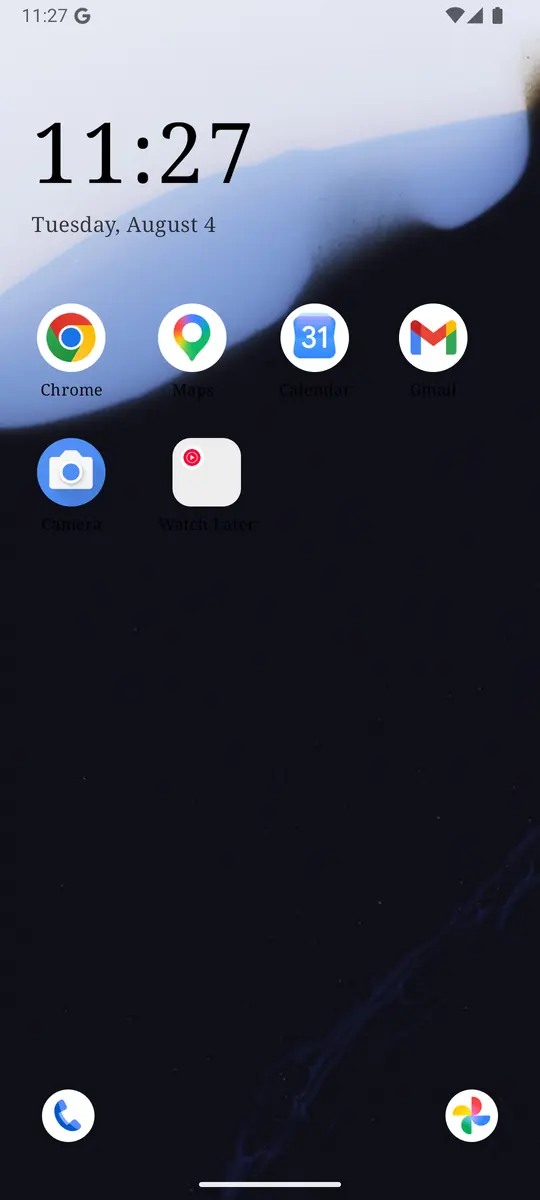
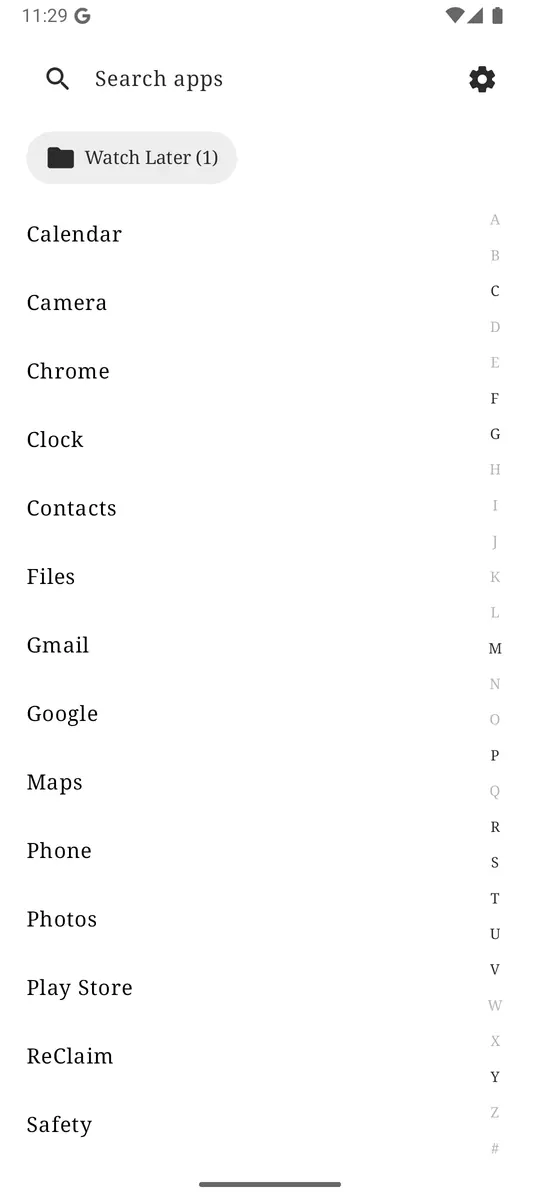
Open Settings → Notifications → Notifications on lock screen, or Lock screen notifications on Samsung, and hide them all or hide their content. If you also want a home screen that does not pull you into other apps once you unlock, try ReClaim. It is free, works on Android 8.0 and newer, and you can switch back to your old home app any time from Settings → Apps → Default apps. Get it free on Google Play.
Questions
How do I hide notifications on my lock screen on Android?
On a Pixel or phone close to stock Android, open Settings, tap Notifications, then Notifications on lock screen, and turn notifications off or choose Don’t show any notifications. On a Samsung Galaxy, open Settings, tap Notifications, tap Lock screen notifications, and turn off the switch at the top. Menu names vary by phone and Android version.
Can I hide what a notification says but still see that it arrived?
Yes. On a Pixel, turn off Show sensitive content under Settings → Notifications → Notifications on lock screen. On a Samsung Galaxy, choose Hide content under Settings → Notifications → Lock screen notifications. You still see that a notification came in, but you have to unlock the phone to read it.
How do I hide lock screen notifications for just one app?
On a Samsung Galaxy, open Settings → Notifications → App notifications, tap the app, and turn off Show content on Lock screen. On a Pixel, open the app’s notification settings and look for a lock screen option; if there is none, set the app’s notifications to Silent and turn off Show silent notifications on the lock screen.
Why can I not find the option to hide sensitive content?
On many phones, the options to hide notification content only appear once the phone has a screen lock, such as a PIN, pattern, or password. Set one under Settings → Security, or search Settings for lock screen, then look again.
Will I still get calls and alarms if I hide lock screen notifications?
Yes. Hiding lock screen notifications changes what shows on the locked screen. Calls and alarms still ring, and notifications still arrive in the shade once you unlock the phone.