Snooze notifications
How to snooze notifications on Android
To snooze notifications on Android, first turn the feature on: open Settings → Notifications and turn on Allow notification snoozing. On a Samsung Galaxy, it is Settings → Notifications → Advanced settings → Show snooze button. Then, when a notification arrives, swipe down, expand it, tap the snooze icon, and pick how long. The notification disappears and comes back when the time is up. Snoozing does not turn off the app’s notifications. Menu names vary a little by phone and Android version.

What does snoozing a notification do?
Snoozing works like the snooze on an alarm clock. Samsung’s notification guide puts it that way: the notification disappears, then reappears after a set amount of time. Nothing is deleted and nothing is marked as read. It just stops sitting in your shade, asking for attention, until the moment you picked.
That is useful for the notifications that need you, just not right now: a bill reminder at the start of a meeting, a message you want to answer properly after dinner, a delivery update while you are trying to finish something. Without snooze, you have two choices. Deal with it now, or swipe it away and hope you remember. Snooze adds a third.
How do you turn on notification snoozing on a Pixel?
On a Google Pixel and most phones close to stock Android, snoozing is a switch you turn on once:
- Open Settings.
- Tap Notifications.
- Turn on Allow notification snoozing. It sits under General, with the other phone-wide notification switches.
The path follows Google’s Pixel help and Android notification help. While you are on that screen, tap Notification history and turn on Use notification history too. It is the easiest way to find a snoozed notification before it comes back.
How do you turn on the snooze button on Samsung?
Samsung’s One UI calls it the snooze button and puts it one level deeper, per Samsung’s app notification guide:
- Open Settings and tap Notifications.
- Tap Advanced settings.
- Turn on Show snooze button.
Samsung notes that on some software versions the snooze option is already there, and on others you need to turn it on. If you cannot find it, open Settings, tap the search bar, and type snooze. The same search works on phones from other makers.

How do you snooze a notification?
Once the switch is on:
- Swipe down from the top of the screen to open the notification shade.
- Expand the notification. Tap the small down arrow on its right.
- Tap the snooze icon. On a Pixel it looks like a small alarm clock. On Samsung it is a bell.
- Pick a time. On a Pixel, the snooze usually starts at 1 hour; tap the arrow next to the time to choose another option, typically from 15 minutes to 2 hours. On Samsung, select a time and tap Save.
Google’s Pixel help also describes a shortcut: slowly swipe the notification left or right, then tap Snooze. A quick swipe dismisses it instead, so go slowly. If you snooze the wrong thing, tap Undo while it shows. On Samsung, you can also snooze from the lock screen the same way, by expanding the notification first.
Where do snoozed notifications go?
Until the time is up, a snoozed notification is out of the shade. If you want it back early, Google’s Android help says notification history lists the day’s notifications, recently dismissed ones, and snoozed ones:
- Pixel and stock Android: Settings → Notifications → Notification history. Turn on Use notification history if it is off.
- Samsung Galaxy: on most recent software, Settings → Notifications → Advanced settings → Notification history.
Notification history only records from the moment it is turned on, so turn it on now, before you need it.
Should you snooze, silence, or turn it off?
| Tool | What it does | Use it for |
|---|---|---|
| Snooze | Hides one notification and brings it back later. | Something you need to act on, just not now. |
| Dismiss | Clears it for good. Notification history can still show it. | Anything you have dealt with or do not need. |
| Silent notifications | The app’s alerts arrive with no sound or pop-up. | Apps you want to check on your own schedule. |
| Turn off notifications | The app stops posting notifications. | Apps that never need you right away. |
| Do Not Disturb | Quiets most interruptions for a while. | Focus time, meetings, and sleep. |
A simple rule: if you keep snoozing the same app’s notifications and never act on them, that app does not need to notify you. Make it silent or turn it off, as in how to turn off notifications for specific apps. For a quiet block of time, Do Not Disturb does the job better than snoozing one alert at a time.
How to use snooze without making a new habit
Snooze is good at one thing: keeping a notification from pulling you into your phone right now. It can backfire if every snooze turns into another visit to the shade.
- Snooze to a moment, not a number. Pick the time that lands after your meeting or after dinner, not the shortest one.
- Snooze, then put the phone down. The point is to get back to what you were doing, not to tidy the rest of the shade.
- Watch for repeat snoozes. A notification you have snoozed three times is either a task to write down or an alert to turn off.
- Do not snooze people who are waiting. If someone needs a quick answer, a short reply now is often kinder than a perfect one in two hours.

What if snoozing does not work?
There is no snooze icon on my notifications
- Turn the feature on first: Allow notification snoozing on a Pixel, Show snooze button on Samsung.
- Expand the notification. The icon often only shows on the expanded view.
- On any phone, search Settings for snooze.
I swiped and the notification vanished
- A fast swipe dismisses. Swipe slowly, or expand the notification and use the snooze icon instead.
- Open Notification history to find it again under recently dismissed.
The app keeps sending new notifications
- That is expected. Snoozing applies to the notification you snoozed, not the whole app. To quiet the app, change its notification settings, or use Do Not Disturb for a while.
Where ReClaim fits
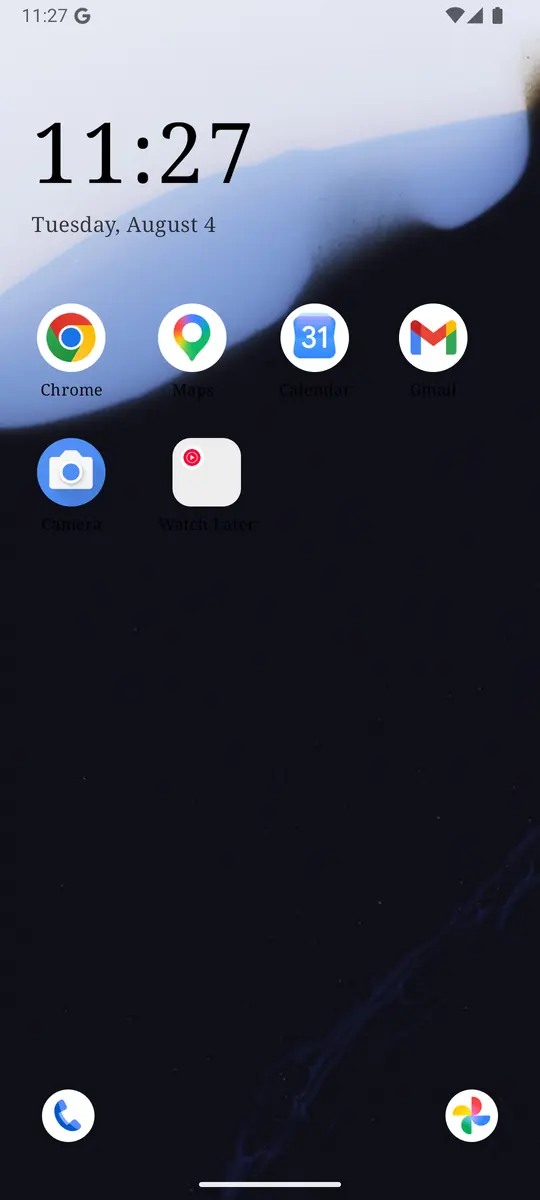
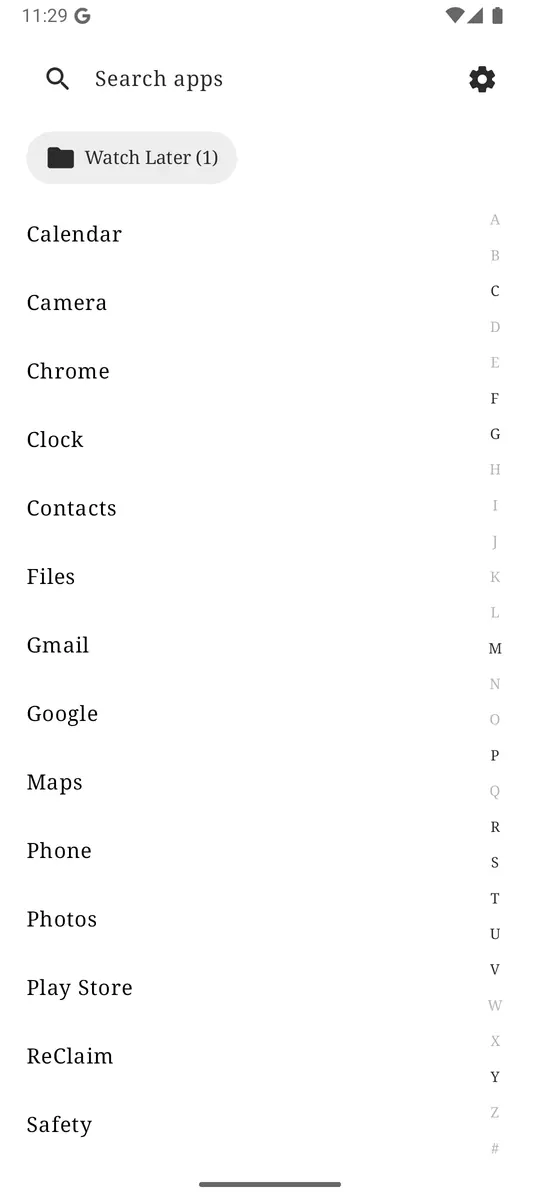
ReClaim is the Android launcher we build. It does not read or change your notifications, so snoozing, notification history, and Do Not Disturb all keep working exactly as described above. What ReClaim changes is the other half of the problem: the home screen you land on when you unlock the phone to deal with that snoozed notification. The home screen is a clock and the few apps you choose, and everything else is a plain alphabetical list of names. On top of that:
- App reminders. Before a distracting app opens, ReClaim asks how long you intend to use it, then nudges you when that time is up.
- Daily and weekly limits. Give an app a budget. When it is up, ReClaim can close it.
- Blocking and scheduled blocking. Block an app for a set time, or set recurring windows, like bedtime, when selected apps are not available.
- Hidden apps with friction. Hide an app from the list, or put a quick challenge in front of it.
If you want to try it, see how to change the default launcher on Android; switching back is the same setting.
Open Settings → Notifications and turn on Allow notification snoozing, or Show snooze button under Advanced settings on Samsung. Then snooze what needs you later and turn off what never needs you. If you also want a home screen that does not pull you into other apps on the way, try ReClaim. It is free, works on Android 8.0 and newer, and you can switch back to your old home app any time from Settings → Apps → Default apps. Get it free on Google Play.
Questions
How do I snooze a notification on Android?
First turn snoozing on: on a Pixel, open Settings, tap Notifications, and turn on Allow notification snoozing. On a Samsung Galaxy, open Settings, tap Notifications, tap Advanced settings, and turn on Show snooze button. Then swipe down, expand the notification, tap the snooze icon, and pick how long.
Why is there no snooze button on my notifications?
Snoozing is usually off until you turn it on. Look for Allow notification snoozing under Settings → Notifications on a Pixel, or Show snooze button under Notifications → Advanced settings on a Samsung Galaxy. On other phones, search Settings for snooze.
How long can I snooze a notification for?
On a Pixel, a snoozed notification usually comes back after 1 hour, and you can change it to another option, typically between 15 minutes and 2 hours. On a Samsung Galaxy, you pick the time when you snooze and tap Save. The options vary by phone and software version.
Where do snoozed notifications go?
They leave the notification shade and come back when the snooze time is up. Until then, you can find them in Notification history, under Settings → Notifications, if notification history is turned on.
Does snoozing a notification mute the app?
No. Snoozing hides that notification for a while. The app’s other notifications can still arrive as normal. To quiet an app for good, change its notification settings, and to quiet everything for a while, use Do Not Disturb.