Notification dots
How to turn off notification dots on Android
To turn off notification dots on Android, open Settings → Notifications and turn off Notification dot on app icon. That clears the dots from every app on a Pixel and most phones close to stock Android. On a Samsung Galaxy, the same switch is Settings → Notifications → Advanced settings → App icon badges. To remove the dot from only one app, open Settings → Apps, pick the app, tap Notifications, and turn off its dot or badge switch. Your notifications still arrive either way. Menu names vary a little by phone and Android version.

What are notification dots on Android?
A notification dot is the small mark on an app’s icon that says the app has a notification you have not opened yet. Google’s Pixel help puts it plainly: a dot on an app’s icon means you have a notification from that app that you haven’t opened. Samsung calls the same thing an app icon badge, and lets it show as a plain dot or as a number.
The dot lives on your home screen and in your app drawer, so it is in front of you every time you unlock the phone. It does not make a sound or light up the screen. It just waits. For a message from someone you care about, that is useful. For a social app, a shopping app, or a game, it is a small standing invitation to open the app and clear it.

How do you turn off notification dots on a Pixel?
On a Google Pixel and most phones close to stock Android, it is one switch:
- Open Settings.
- Tap Notifications.
- Turn off Notification dot on app icon. It sits under General, with the other phone-wide notification switches.
- Press Home. The dots are gone from your home screen and app drawer.
The path follows Google’s Pixel help and Android notification help. On a Pixel, you can also get there from the home screen: touch and hold an empty spot, tap Home settings, then Notification dots. To turn the dots back on, flip the same switch.
How do you turn off app icon badges on Samsung?
Samsung’s One UI puts the switch one level deeper, per Samsung’s notification guide:
- Open Settings and tap Notifications.
- Tap Advanced settings.
- Turn off App icon badges.
If you want to keep badges but drop the numbers, tap App icon badges itself instead of its switch and choose Dot rather than Number. A count of 47 unread items pulls harder than a plain dot. On older Galaxy software, App icon badges may sit directly on the Notifications screen. On any phone, you can open Settings, tap the search bar, and type dot or badge.
How do you turn off notification dots for one app?
If you want dots for a few apps and not the rest, leave the phone-wide switch on and turn them off app by app:
- Open Settings and tap Apps. Tap See all apps if the app is not listed.
- Pick the app and tap Notifications.
- Turn off Allow notification dot on a Pixel, or App icon badges on a Samsung Galaxy.
Some apps split their notifications into categories. On those, the dot or badge switch can sit inside each category, so tap the category to find it. There is also a shortcut from a notification itself: touch and hold the notification, tap the settings gear, and look for the dot switch on the screen that opens.
The opposite approach works too. Turn the phone-wide switch off, and you are done with dots everywhere. That is simpler, and for most people it is enough.
What still happens when dots are off?
| Thing | With dots off |
|---|---|
| Notifications in the shade | Still arrive and stay until you clear them. |
| Sound, vibration, and pop-ups | Unchanged. They follow each app’s notification settings. |
| Lock screen notifications | Unchanged. |
| Unread counts inside the app | Still there when you open it. |
| Marks on app icons | Gone from the home screen and app drawer. |
So turning off dots is low risk. Nothing gets missed that you would not have seen in the notification shade anyway. If an app is noisy as well as dotted, the next step is its notifications, covered in how to turn off notifications for specific apps.
Which apps should keep a notification dot?
A useful test: does the dot tell you about a person waiting for you, or about an app wanting you back? Keep the first kind. Drop the second.
- Usually worth a dot: calls you missed, texts, and the one or two messaging apps the people close to you actually use.
- Usually not: social feeds, video apps, shopping apps, games, news, and anything whose dot clears itself as soon as you look.
- Email depends. If unread mail sits for days, its badge becomes background noise. Either clear it on a schedule or turn the badge off.
If you are not sure, turn every dot off for a week. You will notice which ones you miss, and you can switch those back on one at a time.

What if the dots will not go away?
I cannot find the switch
- On a Pixel it is Settings → Notifications → Notification dot on app icon.
- On Samsung it is under Notifications → Advanced settings. On older Galaxy software, look directly on the Notifications screen.
- On any phone, search Settings for dot or badge.
The switch is off, but I still see dots
- If you use a third-party launcher, it may draw its own badges. Check the launcher’s settings for a dots or badges option.
- Restart the phone. A stuck dot often clears after a restart.
A dot will not clear even after I read everything
- Open the notification shade. The dot follows the notifications there, not what you have read inside the app. Clear the notification and the dot should go.
Where ReClaim fits
ReClaim is the Android launcher we build. It does not ask for notification access, so it has nothing to draw dots with: no badges on the home screen, and none in the app list. The home screen is a clock and the few apps you choose, and everything else is a plain alphabetical list of names. On top of that:
- App reminders. Before a distracting app opens, ReClaim asks how long you intend to use it, then nudges you when that time is up.
- Daily and weekly limits. Give an app a budget. When it is up, ReClaim can close it.
- Blocking and scheduled blocking. Block an app for a set time, or set recurring windows, like bedtime, when selected apps are not available.
- Hidden apps with friction. Hide an app from the list, or put a quick challenge in front of it.
Your notifications still work normally in the shade. ReClaim only changes what the home screen puts in front of you. If you want to try it, see how to change the default launcher on Android; switching back is the same setting.
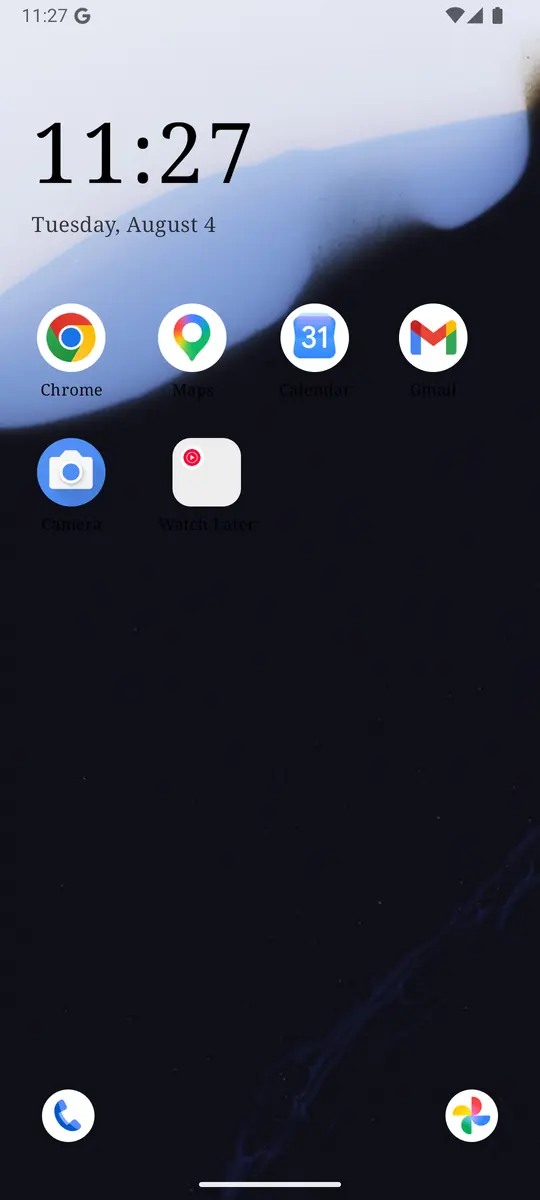
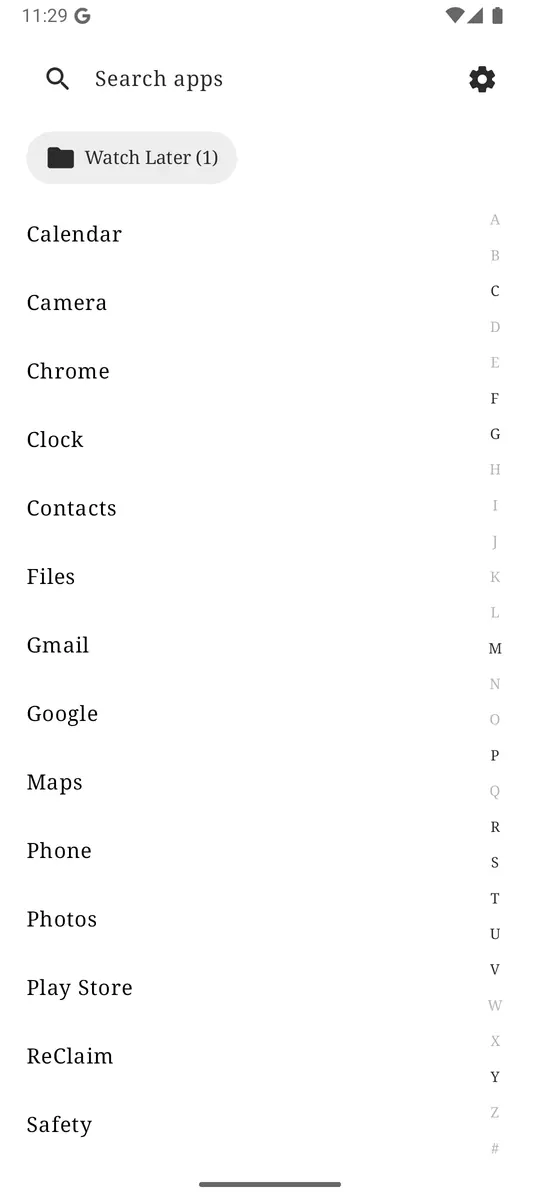
Open Settings → Notifications and turn off Notification dot on app icon, or App icon badges under Advanced settings on Samsung. Keep dots only for the people who are waiting on you. If you want a home screen with no badges at all and a pause before distracting apps, try ReClaim. It is free, works on Android 8.0 and newer, and you can switch back to your old home app any time from Settings → Apps → Default apps. Get it free on Google Play.
Questions
How do I turn off notification dots on Android?
Open Settings, tap Notifications, and turn off Notification dot on app icon. That removes the dots for every app on a Pixel and most phones close to stock Android. On a Samsung Galaxy, open Settings, tap Notifications, tap Advanced settings, and turn off App icon badges.
Does turning off notification dots turn off notifications?
No. The dot is only the marker on the app icon. Notifications still arrive, still show in the notification shade, and still make whatever sound or vibration they made before. To stop the notifications themselves, change that app’s notification settings.
Can I turn off notification dots for just one app?
Yes. Open Settings, tap Apps, pick the app, and tap Notifications. On a Pixel, turn off Allow notification dot. On a Samsung Galaxy, turn off App icon badges for that app; some apps put it inside each notification category instead.
Why do notification dots still show after I turned them off?
Check that you changed the setting on the phone, not only inside one app. Some launchers from Google Play have their own dot or badge setting, so look in the launcher’s settings too. If the dots are stuck, restart the phone.
What is the difference between notification dots and app icon badges?
They are the same idea with different names. Google calls them notification dots. Samsung calls them app icon badges and lets you choose between a plain dot and a number.