Digital Wellbeing
How to use Digital Wellbeing on Android
To use Digital Wellbeing on Android, open Settings → Digital Wellbeing & parental controls. The dashboard shows today’s screen time, unlocks, and notifications. From there you can set app timers (a daily limit that pauses one app until midnight), turn on Focus mode (pause a group of apps now or on a schedule), and schedule Bedtime mode (silence the phone and change the screen at night). Start with the dashboard so you know what is eating the day, then pick one tool that matches the habit: a timer for one sticky app, Focus for work blocks, Bedtime for late nights. Menu names vary by Pixel, Samsung, and Android version; Google’s Digital Wellbeing help is the source for the steps below.

What is Digital Wellbeing on Android?
Digital Wellbeing is Android’s built-in screen-time toolkit. It shows how you use the phone, and it gives you limits and schedules so a habit has somewhere to stop. Google’s help covers the dashboard, app timers, Focus mode, Bedtime mode, and related switches. It is free, already on Pixel phones and many other Android devices, and it works on whole apps: it cannot tell a YouTube Short from a long video inside the same app.
That whole-app limit matters. If Shorts are the problem, YouTube’s own settings are a better first move (see our Shorts guide). Digital Wellbeing is for the phone as a whole: how long Instagram is open, whether notifications keep pulling you back, and whether the screen stays loud at midnight.
How do you open Digital Wellbeing?
- Open Settings.
- Tap Digital Wellbeing & parental controls (on many Samsung phones: Digital Wellbeing and parental controls, or Digital Wellbeing).
- Optional: turn on Show icon in the app list so Digital Wellbeing appears with your other apps.
If you cannot find it, use the search bar at the top of Settings and type “Digital Wellbeing” or “Wellbeing.” Some manufacturers rename the menu; the tools below still sit under that screen when the phone includes them.
How do you read the Digital Wellbeing dashboard?
The chart on the main screen is today’s use. Tap it for more:
- Screen time — which apps were on screen and for how long.
- Unlocks — how often you picked the phone up.
- Notifications — which apps were noisy.
Spend one honest look here before you set any limit. The number that surprises you is usually the one worth a timer. Our longer walkthrough of checking screen time on Android covers Pixel and Samsung dashboards, weekly views, and what the counts leave out.

How do you set app timers?
An app timer is a daily budget for one app. When the time runs out, the app pauses and its icon dims until midnight. Google’s steps:
- Open Settings → Digital Wellbeing & parental controls.
- Tap App timers (or open the dashboard and find the app).
- Next to the app, tap Set timer.
- Choose a daily limit, then tap OK.
Timers reset at midnight. To use the app again the same day, go back and change or delete the timer. That small bit of friction is the point. On some phones you can also protect limits with an App limits PIN so deleting the timer is not a one-tap escape. Full Pixel and Samsung paths, plus Chrome site timers, are in our app timers guide.
How do you use Focus mode?
Focus mode pauses a set of apps you choose, and mutes their notifications, until you turn it off. Use it for a work block or a commute, not as an all-day budget.
- Open Digital Wellbeing → Focus mode.
- Choose which apps to pause.
- Tap Turn on now, or Set a schedule so it starts on its own.
- Optional: tap Take a break for a short window without deleting the list.
Focus mode is temporary by design. If you keep taking breaks all afternoon, that is a signal to add an app timer or a harder block. More detail, including schedules, is in how to set up Focus mode.

How do you schedule Bedtime mode?
Bedtime mode is for the hours you meant to sleep. Google’s help puts it under Digital Wellbeing:
- Open Digital Wellbeing → Bedtime mode → Bedtime routine.
- Choose when it turns on: a schedule (start and end times, days of the week), or while charging between set times.
- Customize: Do Not Disturb for Bedtime, grayscale or a dark screen, and whether Bedtime ends at your next alarm.
On Pixel phones, the Clock app’s Bedtime tab can drive parts of the same routine. Exact labels move between Android versions, so if a switch is missing, search Settings for Bedtime. Our Bedtime mode guide walks through Pixel and Samsung menus, and Do Not Disturb covers silence without the full Bedtime package. Grayscale on its own is covered in grayscale mode.

Which Digital Wellbeing tool should you use?
| Your situation | Use | Why |
|---|---|---|
| You do not know where the time goes | Dashboard for a few days | Pick a limit after you see the real number |
| One app keeps winning | App timer on that app | Daily budget with no Ignore button |
| Work or study blocks get interrupted | Focus mode on a schedule | Pauses a group of apps and their notifications |
| Late-night scrolling | Bedtime mode | Silences the phone and dulls the screen on a schedule |
| Notifications keep pulling you back | Per-app notification controls | Fewer pings, even before a timer |
Start with one change. Two tools that fight each other (a generous timer plus Focus you keep dismissing) teach you nothing. Our guide to limits vs blocking vs reminders helps you match the friction to the habit.
What if Digital Wellbeing is missing or a setting will not stick?
I cannot find Digital Wellbeing
- Search Settings for “Digital Wellbeing” or “Wellbeing.”
- On Samsung, look under Digital Wellbeing and parental controls.
- Update the system software. Some older custom skins rename or omit parts of the toolkit.
The app timer does not pause the app
- Confirm the timer is on the app you actually open (for example YouTube, not a browser tab of youtube.com, unless you also set a Chrome site timer).
- Close the app fully and reopen it after the limit.
- If someone else can delete the timer, set an App limits PIN where your phone offers it.
Focus mode is too easy to leave
- That is expected: Take a break is built in. Pair Focus with an app timer, or use a schedule that matches a real calendar block.
Bedtime mode does not turn on
- Check whether you chose a schedule or “while charging,” and whether the days of the week are selected.
- On Pixel, confirm the Clock app Bedtime schedule if you use that path.
Where ReClaim fits
ReClaim is the Android launcher we build. Digital Wellbeing sits in Settings and measures whole apps. ReClaim sits on the home screen and changes how those apps open. Both can help; they solve different moments.
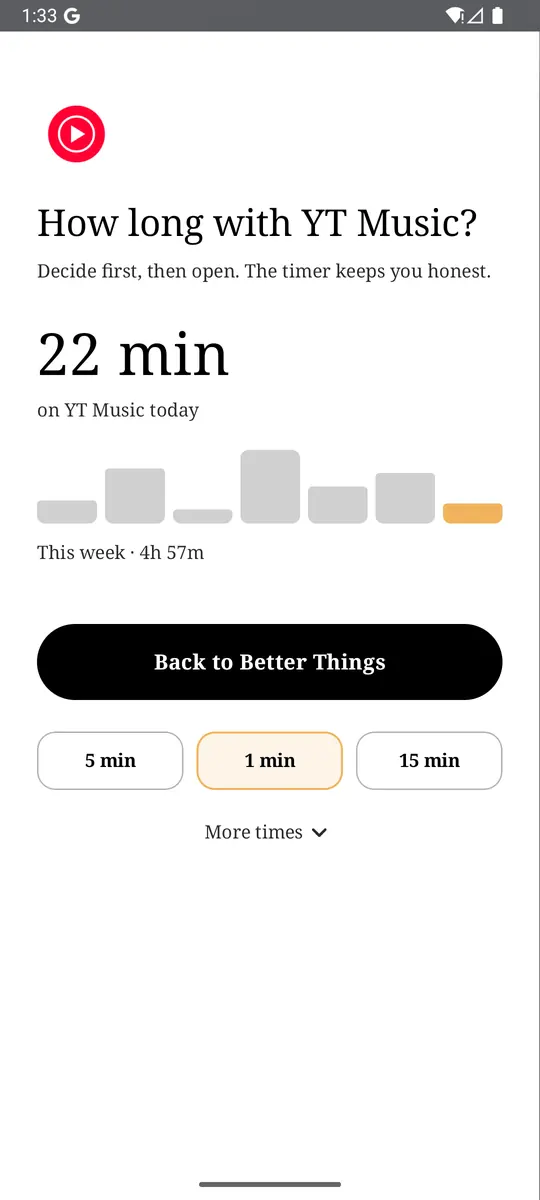
- App reminders. Before a sticky app opens, ReClaim asks how long you intend to use it, then nudges you when that time is up.
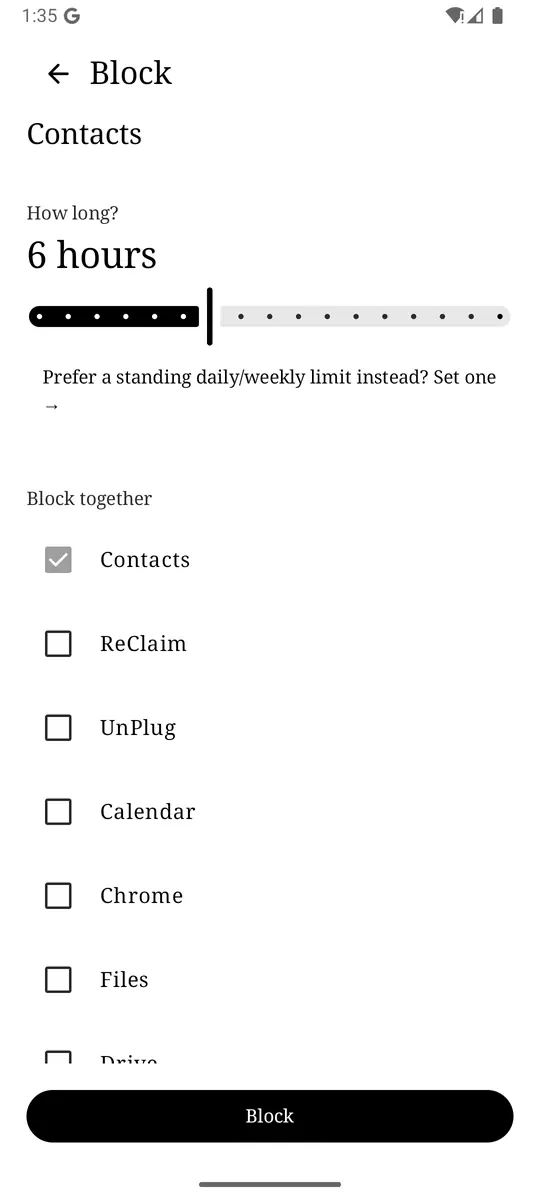
- Daily and weekly limits. Give an app a budget. When it is up, ReClaim can close it.
- Scheduled blocking. Recurring windows (work hours, bedtime) when selected apps are not available.
The home screen itself matters: a clock and the few apps you choose, then a plain alphabetical list without icon candy, so the thumb has less to grab. Digital Wellbeing remains the right place for a system dashboard and a hard midnight reset. ReClaim is for the second before the app opens. If autopilot is the real problem, start with stop opening apps on autopilot.
Read the Digital Wellbeing dashboard for a day, set one app timer on the worst offender, and add Bedtime mode if nights are the problem. If the hard part is opening the app at all, put a reminder or a daily limit in front of it. ReClaim is free, works on Android 8.0 and newer, and you can switch back to your old home app any time from Settings → Apps → Default apps. Get it free on Google Play.
Questions
Where is Digital Wellbeing on Android?
Open Settings and tap Digital Wellbeing & parental controls. Menu names vary by manufacturer. On Samsung Galaxy phones it is often Digital Wellbeing and parental controls. You can also turn on Show icon in the app list from inside Digital Wellbeing so it appears with your other apps.
What does an Android app timer do?
An app timer sets a daily limit for one app. When the time runs out, the app is paused and its icon dims until midnight. To use it again the same day, you have to open Digital Wellbeing and change or delete the timer.
What is the difference between Focus mode and an app timer?
An app timer is a daily budget for one app. Focus mode pauses a set of apps you choose, either right now or on a schedule, and blocks their notifications while it is on. You can take a short break from Focus mode without deleting it.
Does Bedtime mode turn the phone grayscale?
Bedtime mode can silence notifications with Do Not Disturb and change the screen, including options that remove color or keep the screen dark, depending on your phone. Exact switches live under Digital Wellbeing → Bedtime mode → Customize (or similar). Our Bedtime mode guide covers the Pixel and Samsung paths.
Is Digital Wellbeing on every Android phone?
Google’s help describes Digital Wellbeing on phones that include it. Pixel and many Samsung Galaxy phones have it. Some manufacturers rename or relocate the tools, and a few older or heavily customized devices may not offer the same screens. If you cannot find it, search Settings for Digital Wellbeing or Wellbeing.