Screen time
How to check screen time on Android
To check screen time on Android, open Settings, then Digital Wellbeing & parental controls (sometimes shortened to Digital Wellbeing). The chart at the top shows today’s total and your most-used apps. Tap the chart for the full dashboard—screen time, times opened, and notifications received—then tap any app for its daily and weekly history. On Samsung Galaxy phones the path is similar; older models may nest Digital Wellbeing under Battery and device care. You can also add a screen time widget to the Home screen or turn on Show icon in the app list so you do not hunt Settings every time.

What does Digital Wellbeing show for screen time?
Google’s Digital Wellbeing help describes a dashboard for how you spend time on the device: which apps were on screen and for how long, how often you unlocked or opened certain apps, and how many notifications you received. Pixel Help mirrors the same idea in its Pixel Digital Wellbeing article.
In other words, screen time on Android is not a separate “Screen Time” app the way iPhone names it. It is a section of Digital Wellbeing (and parental controls). Once you open it, you typically get:
- Today’s total screen time at the top of the chart.
- A per-app breakdown ranked by how long each app was on screen.
- Times opened / unlocks so you can see frequent short checks, not only long sessions.
- Notifications received so you can tell whether alerts are pulling you back.
- Per-app history when you tap an app—daily and weekly views on many phones.
That last point matters. A high total can mean one long session in YouTube or forty five-second peeks at Messages. The dashboard helps you tell which story you are living before you reach for a timer or a block.
Menu names move with Android version and manufacturer skin. Prefer Settings search for “Digital Wellbeing” or “screen time” over memorizing a path that changed after a system update.

How do you check screen time on Pixel or stock-leaning Android?
Google’s documented path:
- Open your device’s Settings app.
- Tap Digital Wellbeing & parental controls (on some phones: Digital Wellbeing).
- Read today’s total on the chart at the top.
- Tap the chart for more detail—screen time, times opened, and notifications received.
- Tap a listed app for more info or to change that app’s settings (for example an app timer).
If the menu label looks different, use Settings search. On Android 9 and later, Google also documents a screen time widget so you can see the top apps without opening Settings every afternoon.
Digital Wellbeing is usually preinstalled. You do not create an account to see your own usage. Parental views of a child’s phone are a separate Family Link flow; see Kids and Family Link below.
How do you check screen time on a Samsung Galaxy?
Samsung’s Galaxy Digital Wellbeing support article documents usage tracking, a screen time goal, and a weekly report. Screens vary by carrier, One UI version, and model. Samsung notes that Digital Wellbeing cannot be removed or disabled, and that Android 10 or later is required for the features it describes.
- Open Settings.
- Tap Digital Wellbeing (often listed as Digital Wellbeing and parental controls on modern Galaxy phones).
- Read today’s usage on the main screen.
- Tap the Weekly report icon (Samsung describes it as four vertical lines in the top right) for daily averages and most-used apps across the week.
- Optional: under Screen time goal, set a daily target if you want a tracker, not only a readout.
On some older Galaxy phones, Digital Wellbeing lived under Battery and device care. If you do not see it on the main Settings list, search Settings for “Digital Wellbeing” before assuming the feature is missing.
| Phone | Open path | Weekly view |
|---|---|---|
| Pixel / stock-leaning Android | Settings → Digital Wellbeing & parental controls → tap the chart | Move through dates on the dashboard; tap an app for weekly history |
| Samsung Galaxy (newer One UI) | Settings → Digital Wellbeing | Weekly report icon (top right on many models) |
| Older Galaxy / other brands | Settings search for “Digital Wellbeing” or “screen time” | Look for Dashboard, Weekly report, or per-app history |

How do you read the Digital Wellbeing dashboard usefully?
Opening the chart once and feeling guilty is not a plan. Use the three views Google documents—screen time, times opened, and notifications—to pick a single failure mode.
| What the dashboard shows | Likely pattern | Better next step |
|---|---|---|
| One or two apps with huge screen time | Long sessions that drift | App timer or a harder daily/weekly limit |
| High times opened, modest totals | Autopilot unlocks and peeks | Stop opening apps on autopilot + quieter home screen |
| High notifications from a few apps | Alerts keep pulling you back | Turn off notifications for those apps or their noisy categories, or Do Not Disturb for focus blocks |
| Nighttime spike | Wind-down failure | Bedtime mode and optionally grayscale |
| Many apps mid-range | Scattered use, no single villain | Focus mode for work hours + a minimal home screen |
A practical weekly habit:
- Open Digital Wellbeing once on the same day each week (Sunday evening works for many people).
- Write down the top three apps by screen time and the top three by times opened if those lists differ.
- Change only one thing for the next week—one timer, one Focus schedule, one notification cull, or one home-screen cleanup.
- Compare next week’s dashboard before stacking more tools. If every control is on and one app still wins, you need a harder limit, not another chart.
If you are choosing among limits, blocks, and reminders, the decision guide in app limits vs blocking vs reminders maps tools to failure modes without pretending one setting fixes everything.

How do you add the screen time widget on Android?
Google documents a screen time widget for Android 9 and later so you can see the top apps at a glance:
- Touch and hold an empty area on the Home screen.
- Tap Widgets.
- Find the Digital Wellbeing / screen time widget.
- Touch and hold it, drag it where you want it, and lift your finger.
Google’s help says the widget shows the top three apps you use each day. Tap it to open Digital Wellbeing when you want the full chart. Exact widget names and sizes vary by launcher and manufacturer; if Widgets is missing, your Home app may bury the list under a different long-press menu.
Use the widget as a glanceable reminder, not as a guilt meter on every unlock. If seeing the numbers mid-day makes you open the worst app “just to check how bad it is,” put the widget on a secondary Home page or skip it and stick to a weekly dashboard review.
How do you show Digital Wellbeing in the app list?
By default, Digital Wellbeing often lives only in Settings. Google documents a toggle so it appears like a normal app:
- Open Settings → Digital Wellbeing & parental controls.
- Turn on Show icon in the app list.
After that, you can open Digital Wellbeing from the app drawer without digging through Settings. Combine this with the widget if you want both a glanceable total and a one-tap path into the dashboard.

What should you do after you check screen time?
The dashboard answers “where did the minutes go?” It does not change the unlock habit. Match the next tool to the pattern you found:
- Daily cap on a single app: set an app timer from Digital Wellbeing (hourglass / App timers). Samsung also documents App timers and a Screen time goal in its Digital Wellbeing article.
- Apps must pause for a work block: use Focus mode with a short allowlist of apps that stay available.
- Alerts are the interrupt: quiet them with Do Not Disturb or per-app notification categories (Google’s notification help).
- Night use: schedule Bedtime mode; add grayscale if color is part of the pull.
- Unlock starts the scroll: strip the Home screen with a minimal Android home screen, and use the habit steps in how to stop opening apps on autopilot.
- You need the app installed but unavailable for a named window: compare timers, Focus mode, and a real block in block apps without uninstalling.
Do not turn every Digital Wellbeing switch on the same afternoon. One change per week is slower and more honest. The chart will tell you next Sunday whether it worked.
How do you check a child’s screen time on Android?
Your own Digital Wellbeing dashboard only covers the signed-in device you are holding. For a child’s Google account, Google’s parental controls path runs through Family Link. Android Authority and other secondary guides note that you set Family Link up on the parent phone and the child’s phone; the Family Link dashboard then shows the child’s daily and weekly usage.
Treat Family Link as a separate product from your personal Digital Wellbeing review. Menu names and age rules change; follow Google’s current Family Link help for setup rather than a third-party screenshot. This guide stays focused on checking your own screen time.

What if Digital Wellbeing is missing, empty, or looks wrong?
I cannot find Digital Wellbeing
- Search Settings for “Digital Wellbeing” or “screen time.”
- On Samsung, check Battery and device care on older One UI versions.
- Confirm the system is recent enough; Samsung’s article mentions Android 10+ for the features it describes.
- Some heavily customized skins rename or relocate the menu. Manufacturer support search for your model is more reliable than a Pixel screenshot.
The chart is empty or shows almost nothing
- Digital Wellbeing needs time after setup or a factory reset before a full day appears.
- Some work profiles or secondary users track separately from the main profile.
- If usage access was revoked for Digital Wellbeing (rare on stock setups), restore it from Settings → Apps → Special app access → Usage access, then reopen Digital Wellbeing.
The total does not match how the day felt
- Screen time usually means time an app was on screen, not every minute the display was lit for the lock screen or Always On Display. Exact counting rules can differ by version.
- Compare times opened. Forty unlocks with a “low” total still feels busy.
- Check notifications received. A quiet screen with a noisy shade still fragments attention.
I check the dashboard constantly and feel worse
- Move to a weekly review and remove the widget if it has become another compulsion.
- Pick one tool from What to do after you see the numbers and ignore the rest for seven days.
When is checking screen time not enough by itself?
Digital Wellbeing is excellent at diagnosis. Three gaps show up quickly:
- Seeing the number does not add friction to the icon. You can still open the worst app in one tap.
- Timers reset at midnight. A soft daily cap is easy to treat as a suggestion if the phone lets you ignore or raise it without enough friction.
- A busy home screen recreates the habit the chart described. Measurement without a quieter unlock leaves the autopilot path intact.
A practical stack after you trust the dashboard:
- Weekly Digital Wellbeing review so you know which apps still dominate.
- App timers on one or two apps that drift long.
- Focus mode or Do Not Disturb for named deep-work hours.
- Bedtime mode for night.
- A quieter home screen so unlock is not an invitation.
- One harder limit on the app that still wins after everything else.
That last step is where a launcher built for friction helps. ReClaim is a minimalist Android launcher: a clock and the handful of apps you choose on the home screen, and a plain alphabetical list, black text and no icons, one swipe away. On top of that sit blocks from 5 minutes to a year, daily and weekly limits, reminders that ask how long you intend to stay, schedules, and hidden apps with four levels of friction. There are no ads and no account. The feature overview has the full list, and the requirements page lists which permission each feature needs.
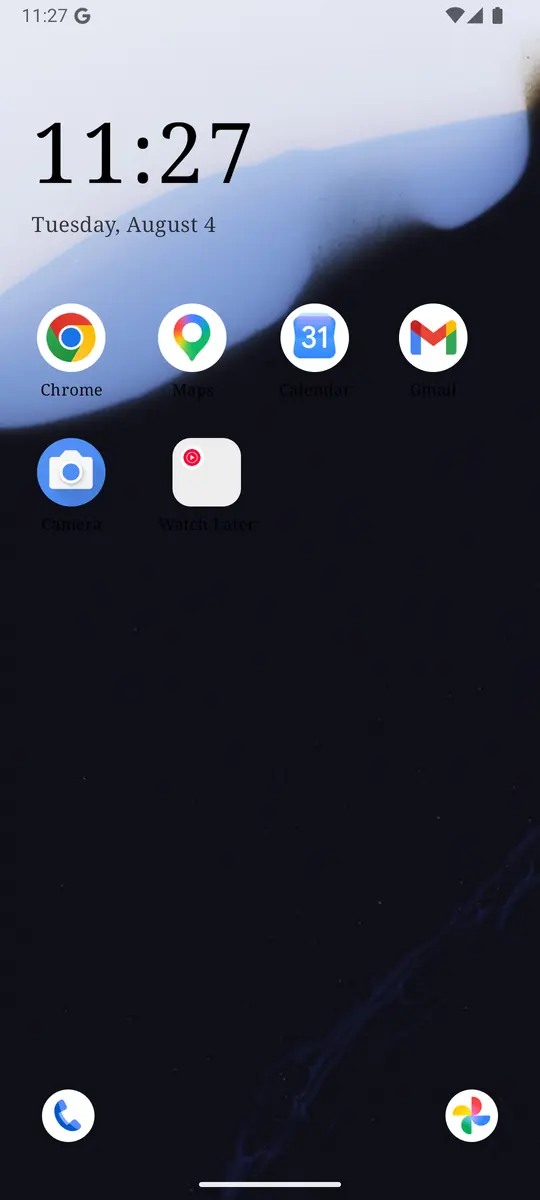
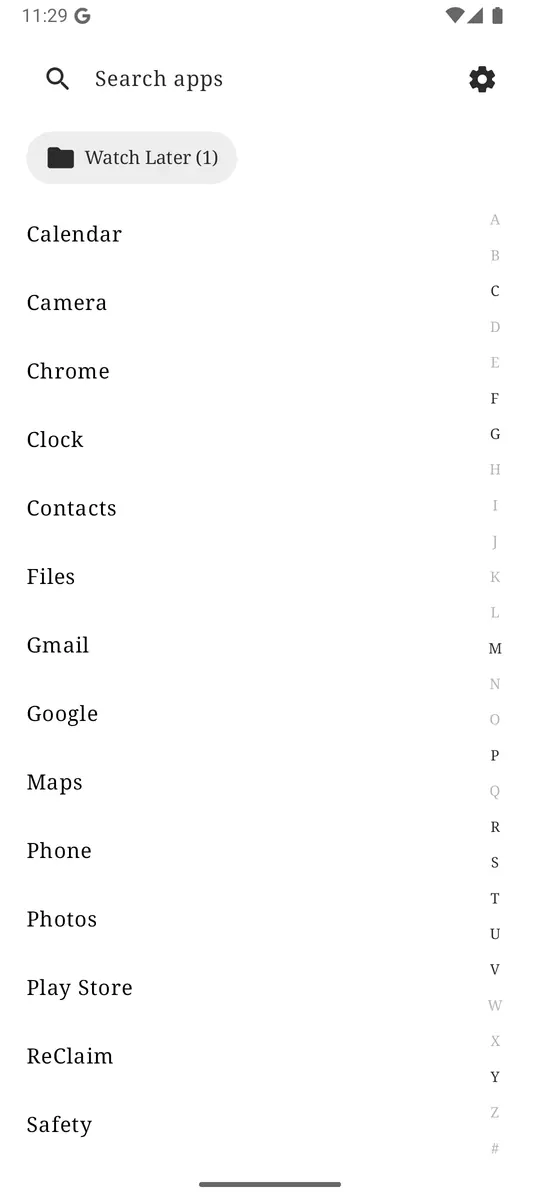
Check screen time weekly in Digital Wellbeing, put a timer or Focus mode on the apps that dominate, and keep unlock boring. ReClaim is free, works on Android 8.0 and newer, and you can switch back to your old home app any time from Settings, Apps, Default apps. Get it free on Google Play.
Questions
Where is screen time on Android?
Open Settings → Digital Wellbeing & parental controls. The chart shows today’s total; tap it for the dashboard. Google’s steps are in the Digital Wellbeing help article.
How do I check screen time on a Samsung Galaxy?
Open Settings → Digital Wellbeing. On older Galaxy phones, look under Battery and device care. Use the Weekly report icon for a seven-day view. Samsung’s paths are in its Digital Wellbeing support article.
Can I see weekly screen time on Android?
Yes. Open the dashboard or weekly report and move through previous days, or tap an app for its weekly history. Samsung documents a Weekly report icon in the top right of Digital Wellbeing on many Galaxy phones.
Does Android have a Screen Time app like iPhone?
Android’s built-in equivalent is Digital Wellbeing, not an app named Screen Time. Turn on Show icon in the app list if you want it in the app drawer, or add the screen time widget to the Home screen.
What should I do after I see my screen time?
Pick one pattern from the dashboard—long sessions, frequent opens, noisy notifications, or night use—and match one tool: an app timer, Focus mode, Do Not Disturb, Bedtime mode, or a quieter home screen. Change one thing per week, then re-check.