Doomscrolling
How to stop doomscrolling on Android
To stop doomscrolling on Android, give the feed a stopping point it does not have. First open Settings → Digital Wellbeing & parental controls and find the one app, and the one hour, that eat the most time. Then turn off that app’s notifications, move its icon off your first home screen, and set an app timer so it pauses until midnight once the day’s time is used. Scroll in Chrome? Add a site timer. Scroll in bed? Schedule Bedtime mode with grayscale and Do Not Disturb. Menus vary by Pixel, Samsung, and Android version; the steps below follow Google’s Digital Wellbeing help.

Why is a feed so hard to stop?
Doomscrolling is the scroll that keeps going after it stopped being useful: one more video, one more post, one more headline. A book has chapters. A TV episode ends. An infinite feed loads the next item before you reach the bottom, so there is no natural moment to put the phone down.
That is why “just use less willpower” rarely works. The fix is to add the stopping point the feed left out. Android already has the tools for it; they are just spread across Settings. This guide is about the scroll once you are inside. If the problem is opening the app in the first place, start with stop opening apps on autopilot.
Which app and which hour is the problem?
- Open Settings → Digital Wellbeing & parental controls (on many Samsung phones: Digital Wellbeing and parental controls).
- Tap the chart to see today’s screen time by app.
- Tap the top app to see its use across the day and week.
Look for the pattern, not the total. One app at one time of day (the commute, the lunch break, the hour after you get into bed) is usually most of the problem. That pair is what every step below targets. Our guide to checking screen time on Android covers the Pixel and Samsung dashboards in more detail.

How do you cut the notifications that start it?
Plenty of scrolls start with a ping: a like, a “you might have missed,” a breaking-news alert. Each one is an invitation back into the feed.
- Open Settings → Notifications → App notifications.
- Find the feed app (switch the list to All apps if it is not under Most recent).
- Turn its notifications off, or leave them on and turn off only the categories that pull you back in, like suggestions or “trending.”
Messages from real people can stay. The feed’s own nudges can go. Full Pixel and Samsung paths are in how to turn off notifications for specific apps.
Should you move the icon?
Yes, if you open the feed without deciding to. Touch and hold the icon and remove it from the home screen. The app stays on the phone and in your app list; it just stops waiting under your thumb every time you unlock. The minimal home screen guide shows what to keep on the first page, and how to hide apps on Android goes further on Pixel and Samsung.
Does the app have its own limit?
Some feeds ship their own brakes. They are worth turning on because they can target the feed itself rather than the whole app:
- YouTube: You → Settings → Time management, where you can set a Shorts feed limit and break reminders. Details in our YouTube Shorts guide.
- Instagram, TikTok, and others: look for a daily time limit or reminder in the app’s settings (often under a “time” or “screen time” heading). Menus move often, so search the app’s settings if you cannot find it.
Most in-app reminders can be dismissed with one tap. Treat them as a speed bump. If you tap past them every night, add the Android timer below.
How do you set an app timer or a site timer?
An app timer is a daily budget with no Ignore button. When the time is up, the app pauses and its icon dims until midnight. Google’s steps:
- Open Settings → Digital Wellbeing & parental controls.
- Tap App timers (or tap the chart and find the app).
- Next to the feed app, tap Set timer, choose a daily limit, and tap OK.
If you scroll the same feed in a browser, an app timer will not catch it. For Chrome, open Digital Wellbeing, tap the chart, tap Chrome (tap Show all apps if you do not see it), then tap Set site timer next to the website. Where your phone offers it, an App limits PIN (Digital Wellbeing → App limits → App limits PIN) makes deleting the timer a little less automatic. More on picking a number in how to set app timers on Android.
How do you stop scrolling in bed?
Late night is where a feed does the most damage, because there is nothing after it except sleep. Two built-in tools help:
- Bedtime mode. Settings → Digital Wellbeing & parental controls → Bedtime mode. Set a schedule and turn on grayscale and Do Not Disturb for bedtime. On newer Pixel phones it lives under Settings → Modes → Bedtime; on Samsung Galaxy phones use Sleep in Modes and Routines. A gray feed is a lot less interesting. See how to set up Bedtime mode.
- Focus mode on a schedule. Pause the feed apps from, say, 10 PM to 7 AM. Unlike an app timer, it pauses those apps for the whole window, no matter how much time you have left. Focus mode has a Take a break button, so it is a firm nudge rather than a lock. See how to set up Focus mode.
The lowest-tech fix is still the strongest: charge the phone across the room, and use a plain alarm clock if the phone is your alarm.

Which stopping point should you pick?
| When you scroll | Use | Why |
|---|---|---|
| After every notification | Notifications off for that app | Removes the invitation back in |
| Every time you unlock | Icon off the first screen | The thumb has nothing to land on |
| In one short-video feed | The app’s own feed limit | Targets the feed, not the whole app |
| On and off all day | App timer or Chrome site timer | A daily budget that ends at a fixed point |
| In bed | Bedtime mode or a scheduled Focus mode | Grayscale, silence, or paused apps on a schedule |
Pick one for a week. If the scroll moves to a different app, that is normal: add the same stop there. Our guide to limits vs blocking vs reminders helps match the friction to the habit.
What if it does not stick?
I delete the app timer every night
- Set the App limits PIN where your phone offers it, or move from a timer to a scheduled Focus mode for the hours that go wrong.
- Raise the limit a little. A timer you respect at 45 minutes beats one you delete at 15.
I just switched to a different app
- Look at the dashboard again after a few days and put a timer on the new one too.
I keep scrolling in the browser
- Add a Chrome site timer for that website. Other browsers are not covered by Chrome’s site timers.
Bedtime mode never turns on
- Check the schedule and days of the week, and whether you chose “while charging” but leave the phone off the charger.
Where ReClaim fits
ReClaim is the Android launcher we build. Digital Wellbeing caps whole apps from inside Settings. ReClaim sits on the home screen, where the scroll usually starts.
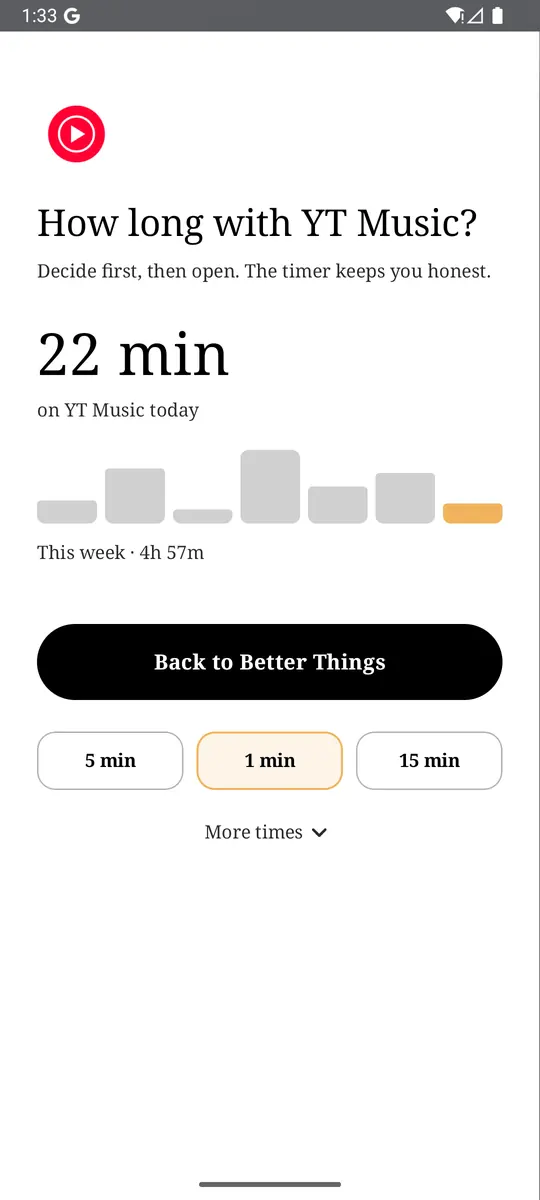
- App reminders. Before a feed app opens, ReClaim asks how long you intend to use it, then nudges you when that time is up. That is the stopping point the feed left out, chosen by you before the first swipe.
- Daily and weekly limits. Give an app a budget. When it is up, ReClaim can close it.
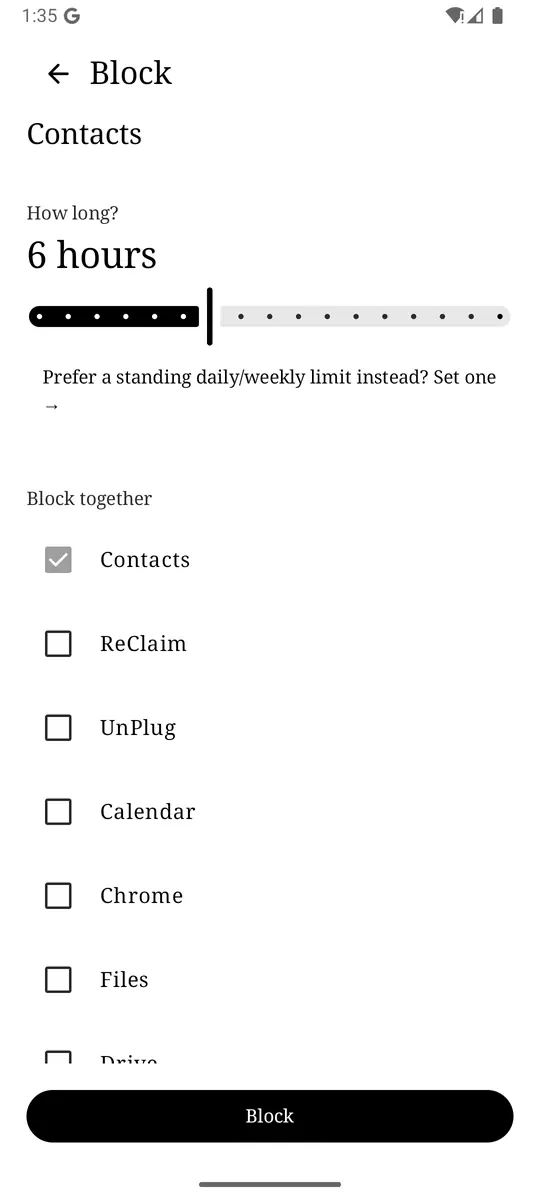
- Scheduled blocking. Recurring windows, like bedtime, when selected apps are not available.
The home screen is a clock and the few apps you choose, then a plain alphabetical list without icon candy, so a feed is something you go looking for rather than something that finds you.
Check the dashboard for your worst app and hour, turn off that app’s notifications, and schedule Bedtime mode if the hour is in bed. If the hard part is the first swipe, put a reminder in front of the app. ReClaim is free, works on Android 8.0 and newer, and you can switch back to your old home app any time from Settings → Apps → Default apps. Get it free on Google Play.
Questions
How do I stop doomscrolling on Android?
Give the feed a stopping point it does not have. Check Digital Wellbeing to see which app and which hour are the problem, turn off that app’s notifications, move its icon off your first home screen, and set an app timer so it pauses until midnight once your daily time is used. If the scrolling happens in bed, schedule Bedtime mode with grayscale and Do Not Disturb.
Can I block doomscrolling apps at night only?
Yes. Focus mode in Digital Wellbeing can pause a set of apps on a schedule you choose, for example every night from 10 PM. Bedtime mode silences the phone and can turn the screen grayscale at the same time. On newer Pixel phones these live under Settings, Modes; on Samsung Galaxy phones look in Modes and Routines.
Does an Android app timer stop scrolling in the browser too?
No. An app timer limits the app, not the website. If you scroll the same feed in Chrome, open Digital Wellbeing, tap the chart, tap Chrome, and set a site timer next to that website.
Can I turn off just the short-video feed inside an app?
Android’s own tools work on whole apps. Some apps have their own controls: YouTube has a Shorts feed limit under Settings, Time management, and Instagram and TikTok have daily time limits or reminders in their settings. Those in-app reminders can usually be dismissed, so pair them with an Android app timer if you need a firmer stop.
Is doomscrolling bad for sleep?
Scrolling in bed can push bedtime later, simply because the feed never ends. We are not doctors and this is not medical advice. If sleep is a real problem, talk to a health professional. On the phone side, charging it away from the bed and scheduling Bedtime mode are the simplest changes.