Grayscale
Does grayscale save battery on Android?
Not in any way you should count on. Android’s grayscale filter turns each color into a gray of roughly the same brightness, and white stays white, so the screen gives off about as much light as it did in color. On an LCD phone the backlight does not change at all. On an OLED phone, where every pixel makes its own light, the change is small and could go either way, and we could not find a published measurement showing a real saving. The settings that do save battery are the ones that make the screen darker or keep it off: dark theme on an OLED screen, lower brightness, a shorter screen timeout, and less screen-on time overall. Grayscale’s real use is the one in its original pitch: a duller screen that you pick up less.

What does grayscale actually change on the screen?
On Pixel and stock-leaning phones, grayscale lives under Settings → Accessibility → Color and motion → Color correction. Samsung puts it under Accessibility → Vision enhancements. Our grayscale how-to walks through both, plus the bedtime-only version.
Whatever the menu says, the filter does one thing: it takes the finished picture and recolors it. Android’s own source code shows how. In ColorDisplayService, the grayscale matrix mixes each pixel’s red, green, and blue using the standard luminance weights (0.2126, 0.7152, and 0.0722). Those weights match how bright each color looks to the eye, so the result is a gray of about the same lightness as the original color.
Three things follow from that:
- White stays white. A white background, a white web page, or a white chat window looks exactly as bright as before.
- Black stays black. Dark areas stay dark. Grayscale does not darken anything.
- Colors become mid grays. A bright blue button turns into a gray of about the same lightness, not a black one.
Grayscale is not dimming. The app still draws the same picture, and the phone simply turns its colors into grays before showing it.

Why does it matter whether your phone is OLED or LCD?
Phone screens come in two broad types, and they spend power in different ways.
- LCD: a backlight shines through the whole panel all the time, and liquid crystals block or pass that light for each pixel. Researchers at Rice University put it plainly in their OLED power modeling paper: an LCD panel “consumes almost constant power regardless of the display content,” and color has a negligible power impact while the backlight dominates. On an LCD phone, neither grayscale nor dark theme changes much. Brightness, which sets the backlight, does.
- OLED (AMOLED on many phones): there is no backlight. Each pixel makes its own light from red, green, and blue subpixels, and a black pixel is close to off. The same paper notes that the three subpixel colors have different efficiencies, so the color of a pixel directly changes its power draw. This is why what is on screen matters on OLED phones, and why Google’s developer guide says dark theme can reduce power use “by a significant amount, depending on the device’s screen technology” (Android Developers).
To find out which one you have, search your phone’s spec sheet for “OLED,” “AMOLED,” or “LCD” (sometimes “IPS LCD”). Many recent mid-range and flagship Android phones use OLED, but plenty of models still ship with LCD, so check rather than assume.
Why does grayscale alone save so little?
Put the two halves together and the answer is mostly arithmetic.
- On LCD, there is nothing for grayscale to save. The backlight is doing the same work in color or in gray.
- On OLED, the expensive part of the screen does not change. Bright areas, especially white backgrounds, are where an OLED panel spends its power. Grayscale leaves white at full white, so a light-themed app costs about what it did before.
- The colored parts trade one cost for another. A saturated color might light one or two subpixels strongly. Its gray lights all three at a moderate level. Because the subpixels have different efficiencies, the gray version can be a little cheaper or a little more expensive depending on the color and the panel. Across a whole screen, those small differences partly cancel out.
We looked for a study that measured Android’s grayscale setting directly and did not find a peer-reviewed one, so we will not give you a percentage. What we can point to is what Google leaves out. Its battery pages for Android phones and for Pixel phones cover lower brightness, adaptive brightness, a shorter screen timeout, and dark theme, and the Pixel page adds turning off Always-on Display. Grayscale is not on either list.
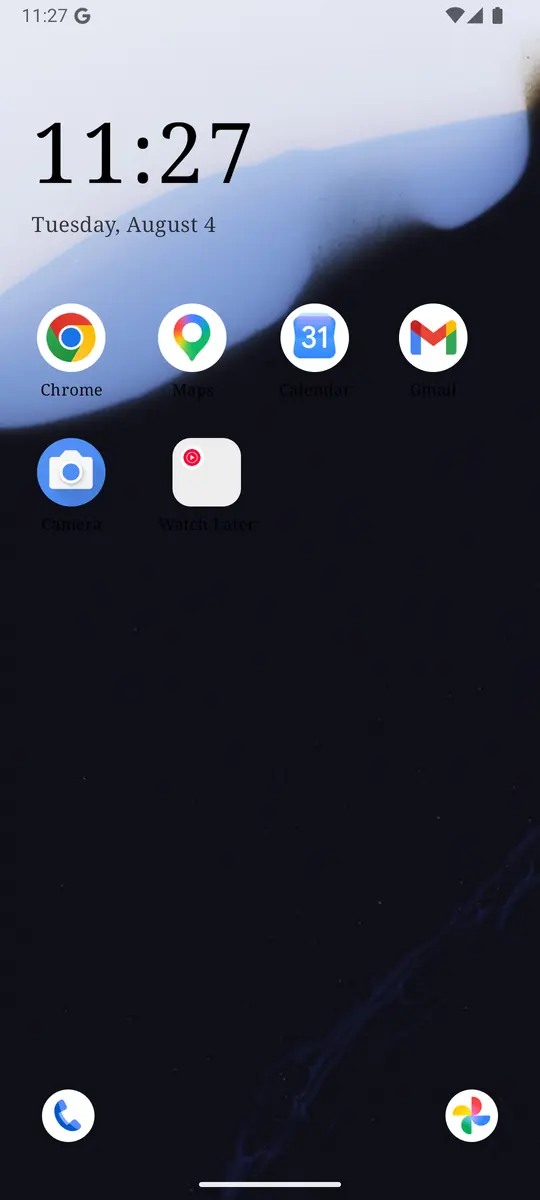
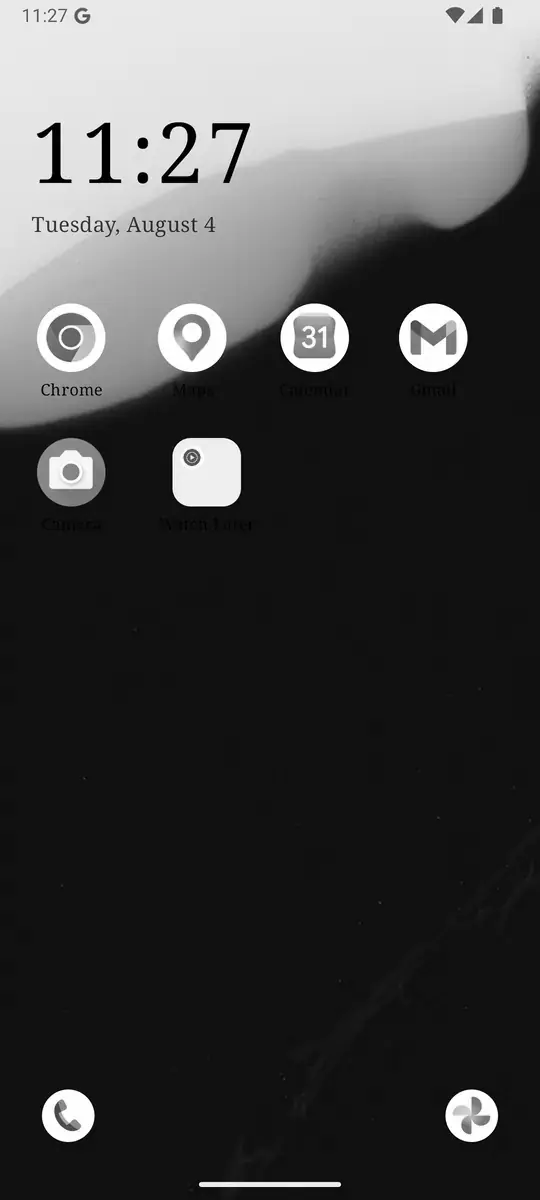
Then why does Samsung’s power saving turn the screen gray?
If you have a Galaxy phone, you may have seen the screen go gray when the battery gets low. Samsung’s grayscale troubleshooting article says Power saving mode “limits screen brightness and shifts to grayscale to extend battery life.”
The detail is in the bundle. Power saving does several things at once. Samsung’s battery guide says it reduces performance and that background apps may not update or send notifications. Lower brightness and fewer background tasks are well-known savers. Samsung does not publish how much of the saving comes from the gray part. A gray screen may also nudge you to put the phone down sooner. That is useful, but it is a habit effect, not grayscale being efficient on its own.
Pixel phones take a different route. Google’s dark theme help says Battery Saver can turn on dark theme automatically. The Android help adds that Battery Saver also limits or turns off background activity.

What actually saves battery: dark theme on an OLED screen
Dark theme is the setting that changes what grayscale does not: how much light the screen gives off. The best measurement we know of comes from Purdue University. Pranab Dash and Y. Charlie Hu built a per-frame OLED power profiler and published “How much battery does dark mode save?” at the ACM MobiSys 2021 conference. They tested six Google apps (Maps, News, Phone, Calendar, YouTube, and Calculator) in light and dark mode on four OLED phones: Pixel 2, Moto Z3, Pixel 4, and Pixel 5.
- At 100% brightness, switching from light to dark mode cut whole-phone power by 39% to 47% on average across the four phones.
- At 30% to 50% brightness, the average saving fell to 3% to 9%.
That second number is the one most people live with. Purdue’s announcement notes that auto-brightness tends to keep phones around 30% to 40% brightness most of the time indoors. Dark theme is a real saving on OLED, and a big one outdoors in sunlight, but a modest one in a normally lit room.
To turn it on, Google’s help says to open Settings → Display and turn on Dark theme. On Pixel, the path is Settings → Display & touch → Dark theme. You can also schedule it, and Bedtime mode can switch it on only at night. Not every app follows the system setting, so check the theme option inside the apps you use most.
What actually saves battery: screen brightness
Brightness is the bigger knob on both kinds of screen. On an LCD it sets the backlight. On an OLED it sets how hard every lit pixel is driven. Writing about the same research for Purdue’s engineering school, Hu says lowering brightness from 100% to 50% cut OLED display power by about ten times in their measurements, whether or not the content was dark. That is why dark mode saves so much less at everyday brightness: brightness has already done most of the work.
Google and Samsung both recommend the same moves:
- Lower the brightness slider in Quick Settings to the lowest level you can read comfortably.
- Keep adaptive brightness on. On Pixel it is under Settings → Display & touch → Adaptive brightness. Samsung says it can also help extend battery life.
- Notice when you are outdoors. Sunlight pushes auto-brightness to the top, and that is exactly when dark theme pays off most on OLED.

What actually saves battery: less screen-on time
The cheapest screen is one that is off. Google’s Android battery help tells people to avoid actions that keep the screen on for long stretches, such as long navigation sessions, videos, and graphics-heavy games, and to let the screen turn off sooner. Its Pixel help adds turning off Always-on Display, live wallpapers, and Smooth Display. Samsung’s guide suggests a 15-second timeout to save the most battery.
This is where grayscale gets back into the battery story, by a side door. It does not make the screen cheaper to run. It can make the screen less interesting to look at. In the three published studies we summarize in our grayscale guide, people used their phones roughly 20 to 50 minutes less per day while in grayscale. Those studies measured screen time, not battery, so we will not turn their minutes into a battery percentage. But fewer minutes with the screen on is something Google’s and Samsung’s battery guides both push for.
To see whether that is happening for you, check the time itself. Digital Wellbeing’s dashboard shows screen time per app, and our guide to checking screen time on Android walks through it.
Grayscale vs the settings that actually move the battery
| Setting | What it changes | Battery effect |
|---|---|---|
| Grayscale | Color only; lightness stays about the same | LCD: none. OLED: small, could go either way. No published measurement found |
| Dark theme | Large light areas become dark | OLED: 3% to 9% of whole-phone power at 30% to 50% brightness, 39% to 47% at 100% (Purdue). LCD: little |
| Lower brightness / adaptive brightness | How much light every pixel or the backlight puts out | Large on both screen types; on Google’s and Samsung’s battery lists |
| Shorter screen timeout | How long the screen stays on after you stop touching it | On Google’s and Samsung’s battery lists |
| Always-on Display off | The screen fully off when locked | On Google’s Pixel battery list |
| Less screen-on time | Total hours the screen is lit | The biggest lever; grayscale may help indirectly by making the phone less appealing |
How to check what your own screen costs
You do not need lab gear to see where your battery goes. Start with what the phone already tracks.
- Open the battery usage screen. On Pixel, Google documents Settings → Battery → Battery usage, with a View by apps option. On Samsung, open Settings → Battery and tap View details for app usage plus Screen on time and Screen off time.
- Note your screen-on time for a normal day, and which apps used the most battery.
- Change one thing for a few days. Turn on dark theme, or lower brightness and shorten the timeout. If you want to test grayscale, change only that.
- Compare similar days. Battery use swings with signal, location, temperature, and what you did, so one day proves little. Look for a pattern across several.
If grayscale is the only change and your battery barely moves, that matches the physics above. If your screen-on time dropped, that is grayscale doing its real job.

A battery-friendly setup that keeps grayscale
You do not have to choose. Grayscale and the battery settings stack, because they do different jobs.
- Dark theme on, especially if your phone is OLED. Schedule it if you prefer light mode during the day.
- Adaptive brightness on, and the slider nudged down whenever the screen looks brighter than it needs to be.
- Screen timeout at 30 seconds or less, and Always-on Display off if you can live without it.
- Grayscale for friction, not for power. All day if you can stand it, or only at night through Bedtime mode, which can turn on grayscale and dark theme together.
- One limit on the app that keeps you up. An app timer cuts screen-on time more directly than any color setting.

The screen-on part is also where a different home screen helps. ReClaim is a minimalist Android launcher: a clock and the handful of apps you choose on the home screen, and a plain alphabetical list, black text and no icons, one swipe away. On top of that sit blocks from 5 minutes to a year, daily and weekly limits, reminders that ask how long you intend to stay, schedules, and hidden apps with four levels of friction. There are no ads and no account. Grayscale is a system setting, so it works with ReClaim like any other screen. The feature overview has the full list, and the requirements page lists which permission each feature needs.
Use dark theme and lower brightness for the battery, grayscale for the pull, and a quiet home screen for the unlocks. ReClaim is free, works on Android 8.0 and newer, and you can switch back to your old home app any time from Settings, Apps, Default apps. Get it free on Google Play.
Questions
Does grayscale save battery on Android?
Not in any way you should count on. Android’s grayscale filter turns each color into a gray of roughly the same brightness, and white stays white, so the screen gives off about as much light as before. On an LCD the backlight is unchanged. On an OLED the difference is small and could go either way. We found no published measurement showing a meaningful saving.
Does grayscale save battery on an OLED or AMOLED screen?
OLED power depends on how bright each pixel is and which subpixels light up. Grayscale keeps brightness roughly the same and leaves white backgrounds white, so any change is small. Dark theme and lower brightness are what cut OLED power, because they make pixels darker or turn them off.
Is dark mode better than grayscale for battery?
Yes, on OLED phones. Purdue researchers measured that switching apps from light to dark mode at 100% brightness cut whole-phone power by 39% to 47% on average, but only 3% to 9% at 30% to 50% brightness. On LCD phones dark mode saves little, and grayscale saves little on either screen type.
Why does power saving mode turn my Samsung screen gray?
Samsung says Power saving mode can limit screen brightness and shift the display to grayscale to extend battery life. It bundles grayscale with other limits, such as lower brightness and fewer background tasks, and does not publish how much each part saves.
Should I still use grayscale if it does not save battery?
Use it for the reason it works: it makes the phone less appealing. In published studies, people used their phones roughly 20 to 50 minutes less per day while in grayscale. Less screen-on time is what saves battery, so grayscale can help indirectly by changing how long you look. Setup steps are in our grayscale guide.